

Creating and managing filters
Convermax provides multiple ways to create, enable and manage filters. This guide covers all methods for creating and managing product filters in your store.
Creating Filters
Section titled “Creating Filters”Method 1: Using the Convermax App
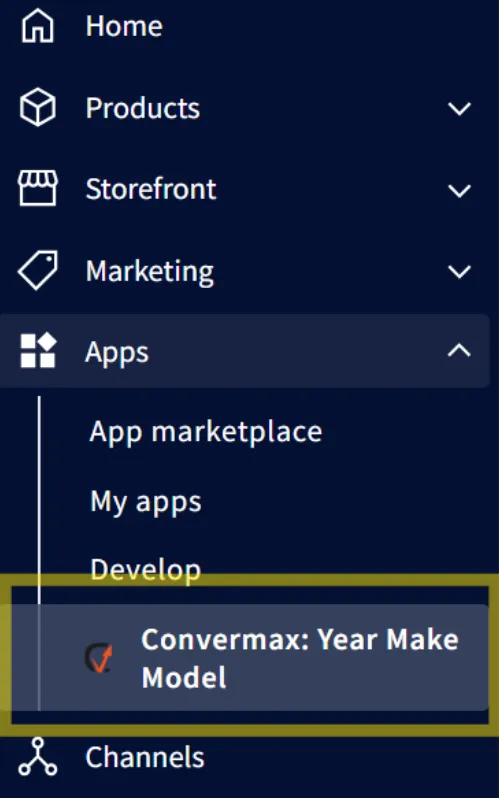
Section titled “Method 1: Using the Convermax App”- Go to the Convermax app in your BigCommerce dashboard
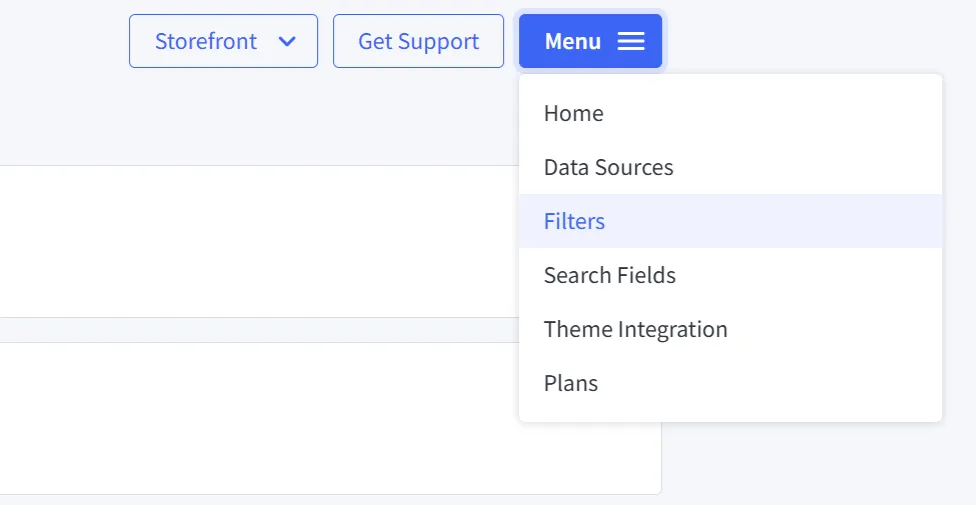
- Select Filters under the Menu button
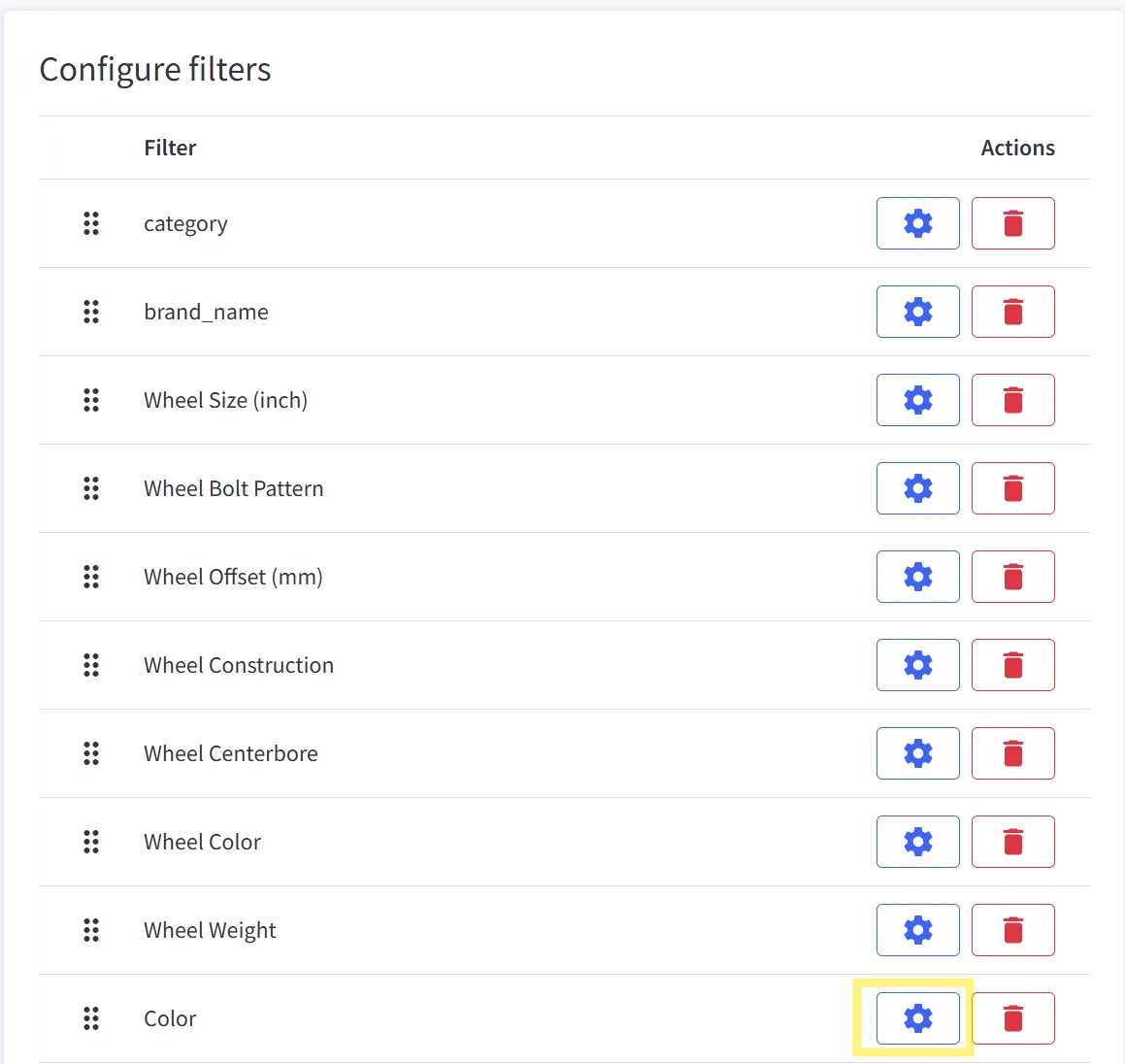
Option A: Enable an existing field as a filter
Section titled “Option A: Enable an existing field as a filter”- Click the Gear button next to the field you want to enable
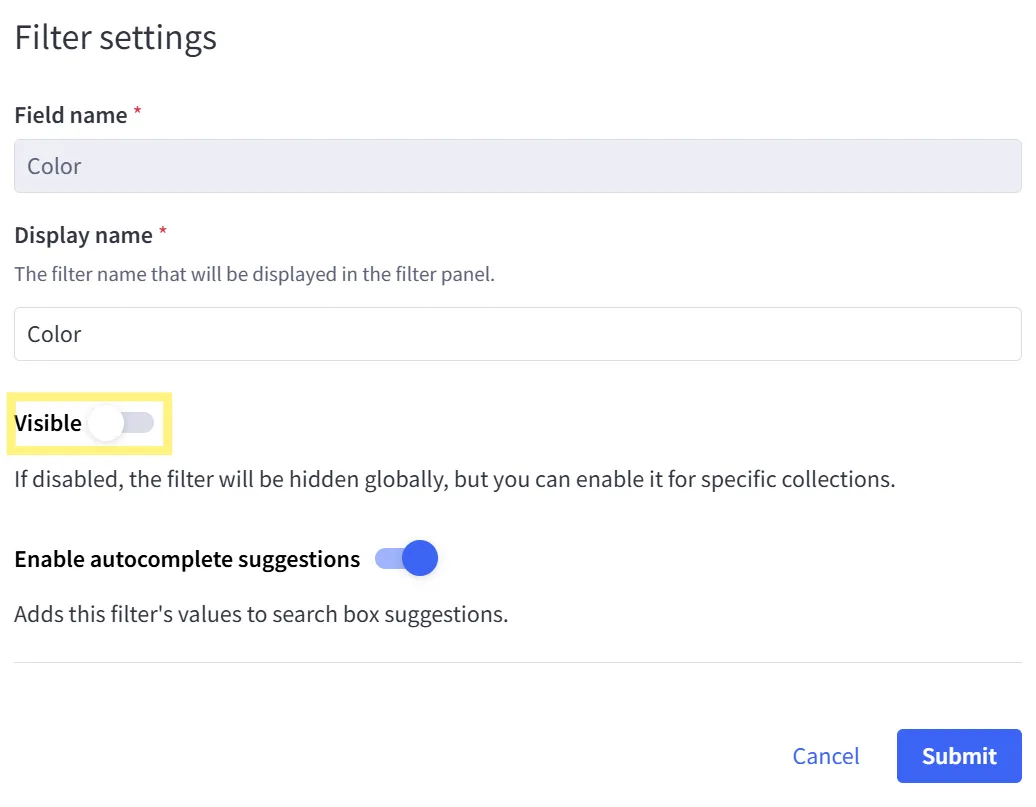
- Toggle ‘Visible’ to On and click Submit
Option B: Create a new filter
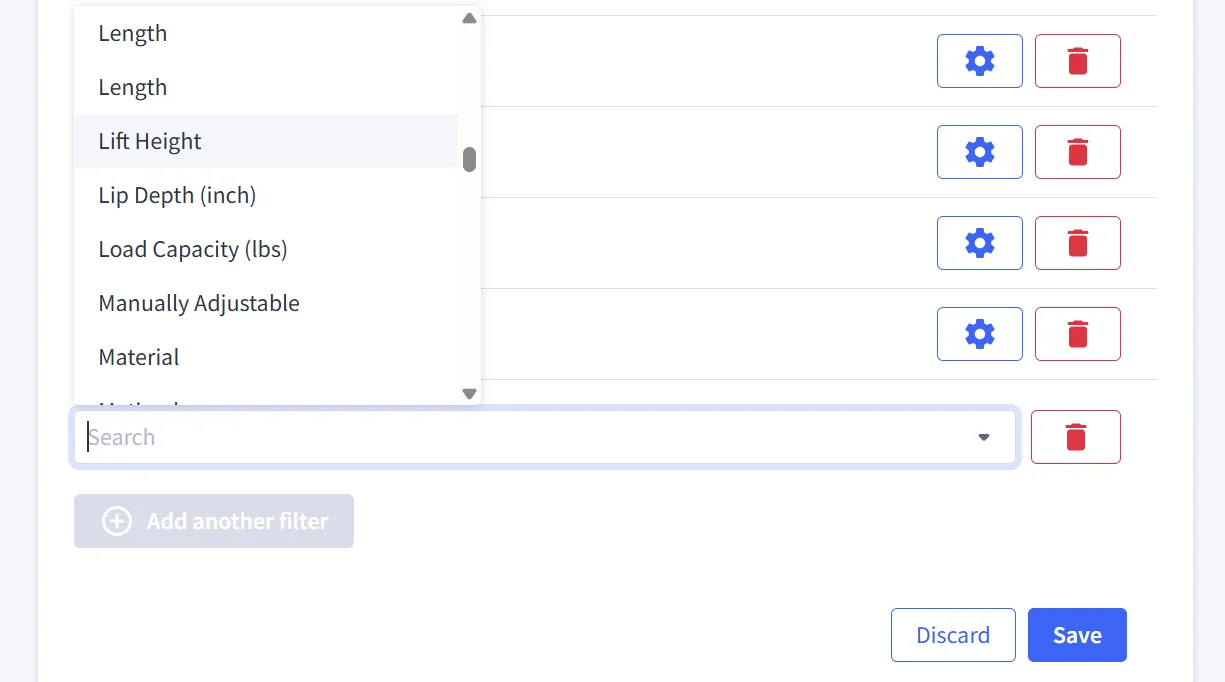
Section titled “Option B: Create a new filter”- Select ‘Add another filter’ at the bottom of the filter list
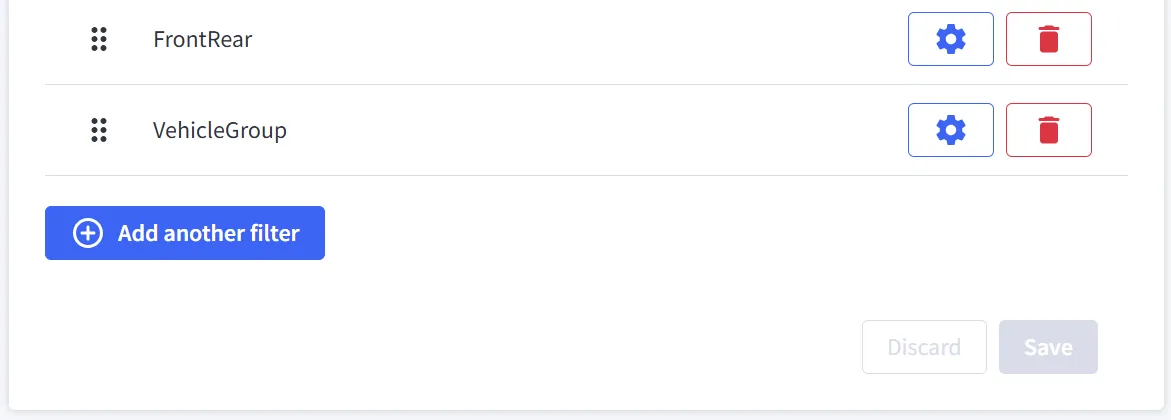
- Select the desired field and click Save
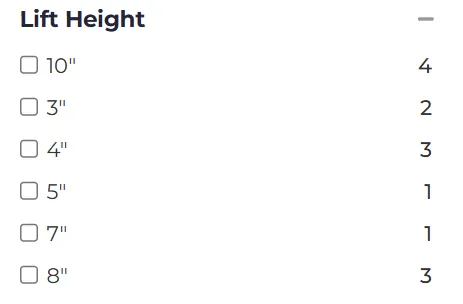
Important: After creating or enabling filters, perform a full reindex for the filter to appear on your storefront.
Method 2: Using Custom Fields
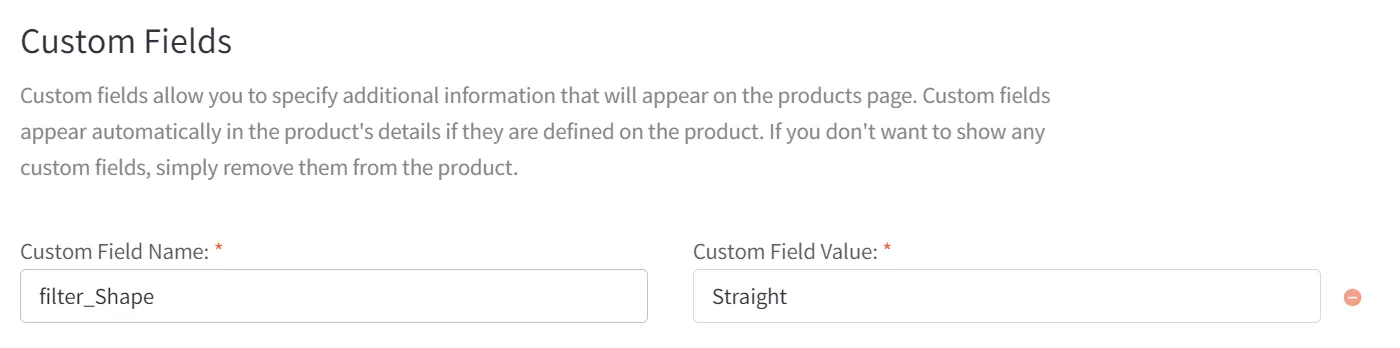
Section titled “Method 2: Using Custom Fields”Add custom fields in BigCommerce starting with filter_ and they will automatically become filters after indexing. The filter name will use everything written after filter_.
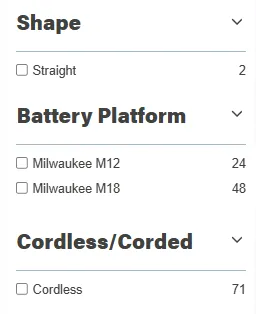
Example: If you create a custom field named filter_Brand, it will appear as a “Brand” filter.
Admin panel view:
Result on storefront:
Managing Filter Visibility by Category
Section titled “Managing Filter Visibility by Category”How Filter Visibility Works
Section titled “How Filter Visibility Works”Filter visibility is controlled by defining a general rule in the app settings, which can then be overridden locally using the “Search Keywords” field on specific categories.
The visibility logic works as follows:
- The filter is visible in the app settings, no Search Keywords used → it will be visible everywhere
- The filter is not visible in the app settings, no Search Keywords used → it will be hidden everywhere
- The filter is visible in the app settings, but some categories have a Hide Filters keyword for that filter → it will be visible everywhere, except on those specific categories
- The filter is not visible in the app settings, but some categories have a Show Filters keyword for that filter → it will be hidden everywhere, but visible on those specific categories
Setting Global Filter Visibility
Section titled “Setting Global Filter Visibility”To set a general rule for filter visibility across your store:
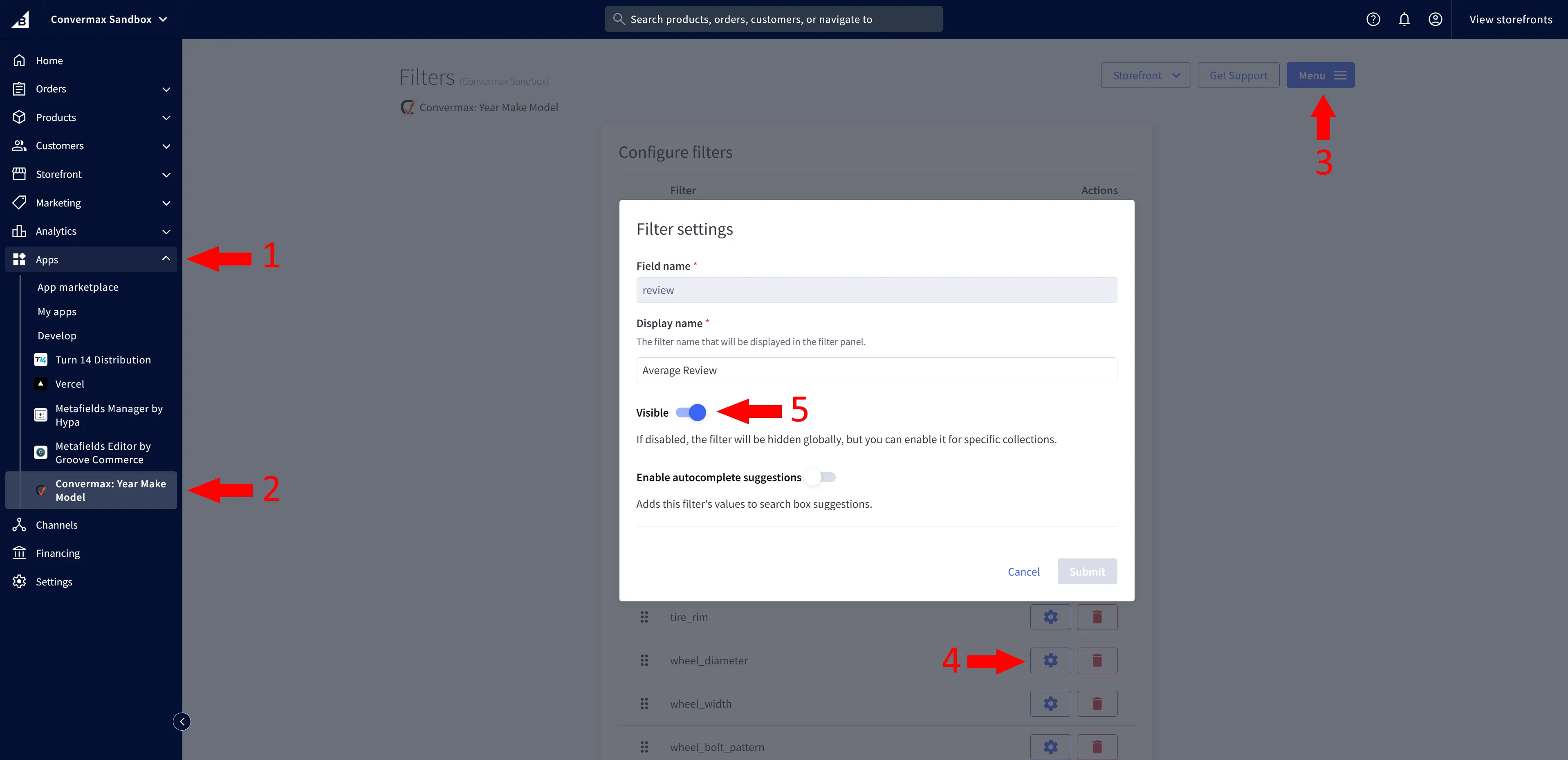
Go to Admin → Apps → Convermax: Year Make Model → Menu → Filters → Filter settings (gear icon)
Setting Filter Visibility for Specific Collections
Section titled “Setting Filter Visibility for Specific Collections”To hide or show specific filters on a category page that are globally visible:
-
Open the category in BigCommerce
-
Scroll down to the “Search Keywords” field
-
Add the filters you want to hide or show using this format:
Hide Filters: stock; Fitment; etc./Show Filters: weight; color; etc.
Example:
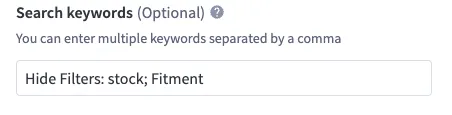
Use this when you want to hide filters that are globally visible in the store from specific categories. For example, you can disable extra fields (like stock, Fitment, etc.) from a category, while they remain visible in the rest of the store.
You can hide multiple filters by separating them with a semicolon (;).