

Add My Garage
We recommend placing Garage at the site header to the left of the cart to be aligned with the Account, Wishlist, and Cart site buttons

Add My Garage via the theme editor
Section titled “Add My Garage via the theme editor”The My Garage block can be added only to the Header group, so it shows on every page.
- Go to your theme editor: Admin → Sales channels → Online Store → Themes → (on the desired theme) Customize
- In the Header area of the panel on the left, click Add section. In themes whose header group contains a section with blocks (for example, Horizon), you can instead click Add block inside that section (1)
- Open the Apps tab and select My Garage (2)
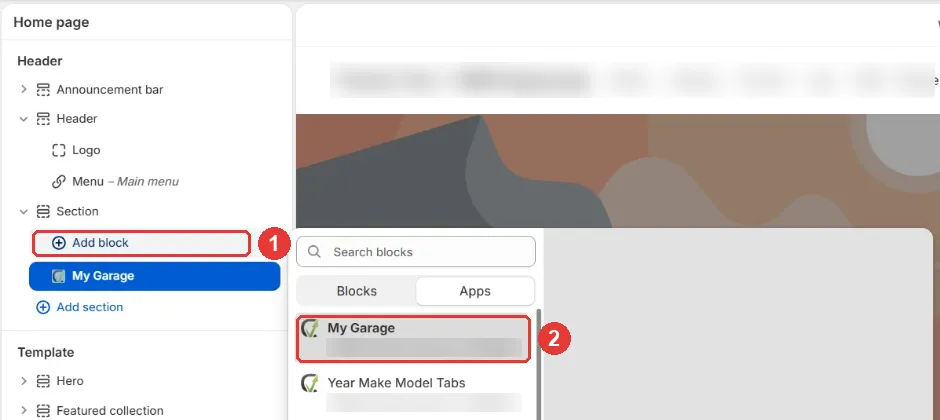
- Move the block to the desired position inside the header group
- Optionally adjust the block settings: icon (preset or custom image), icon colors, hiding the label, CLS optimization widths, and custom CSS
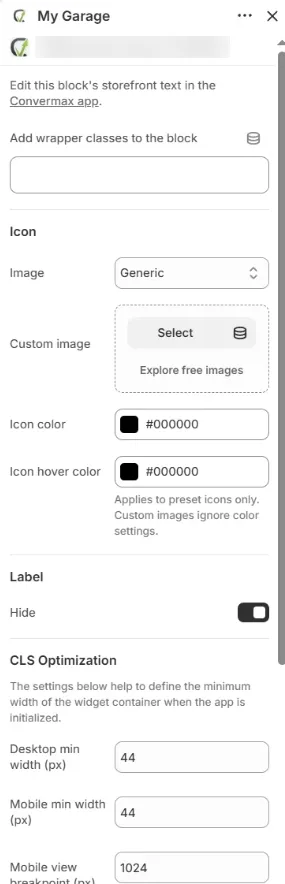
- Click the Save button in the top-right corner to apply the changes
Manual Integration Code Editing
Section titled “Manual Integration Code Editing”-
Go to your theme code editor: Admin → Sales channels → Online Store → Themes → (on the desired theme) ⋯ → Edit code
-
Select the desired template file (usually it has “header” in its name or markup)
-
Choose the desired location of the My Garage and paste the following code:
a) Multi-Vehicle Garage:
<div id="cm-garage"></div>b) Single Vehicle Garage:
<div id="cm-single-garage"></div>
Optional: If you want to change the garage position on the mobile version
-
Go to your theme code editor
-
Select the desired template file (usually it has “header” and “mobile” in its name or markup)
-
Choose the desired location of My Garage on the mobile and paste the following code:
a) Multi-Vehicle Garage:
<div id="cm-mobile-garage"></div>b) Single-Vehicle Garage:
<div id="cm-mobile-single-garage"></div>