Add the Customer vehicle block to checkout pages
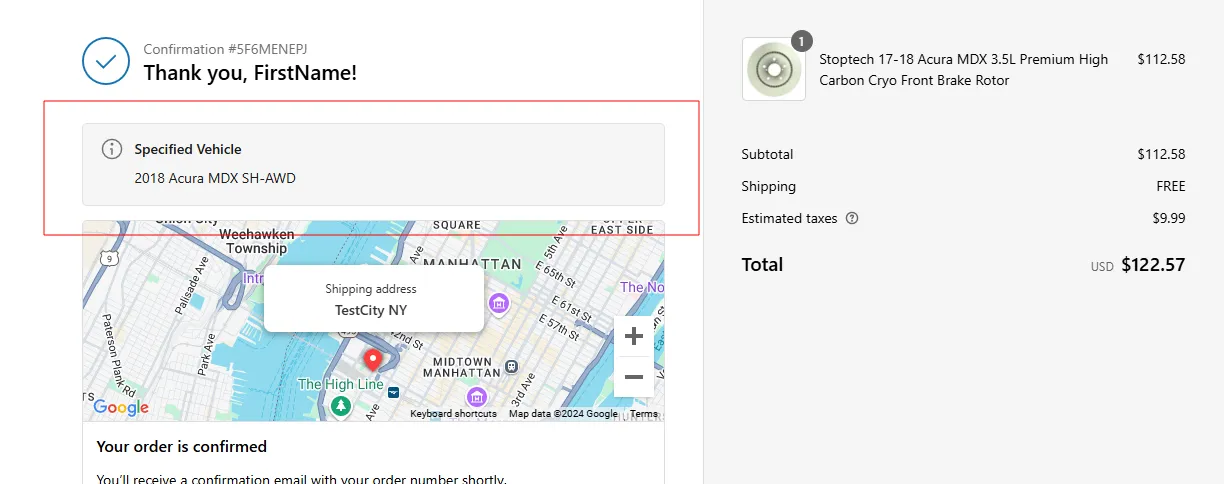
The Customer vehicle checkout block shows the vehicle the customer selected on the storefront. It renders a Specified Vehicle banner with the vehicle from the order’s Vehicle cart attribute, or “You haven’t specified a vehicle for this order.” when no vehicle was selected. See where we store a customer vehicle.
Where the block can be added
Section titled “Where the block can be added”| Page | Shopify plan | Requirement |
|---|---|---|
| Thank you | Any | — |
| Order status | Any | New customer accounts |
| Checkout | Shopify Plus | — |
Add the block
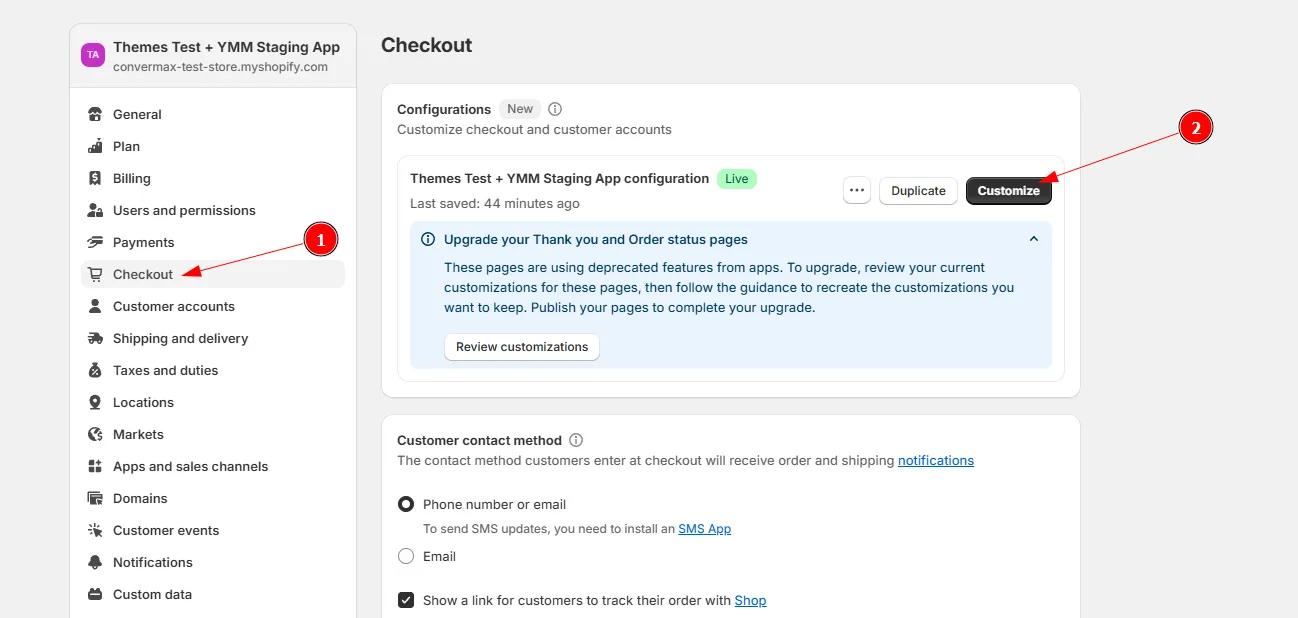
Section titled “Add the block”- Go to Settings → Checkout and click Customize.
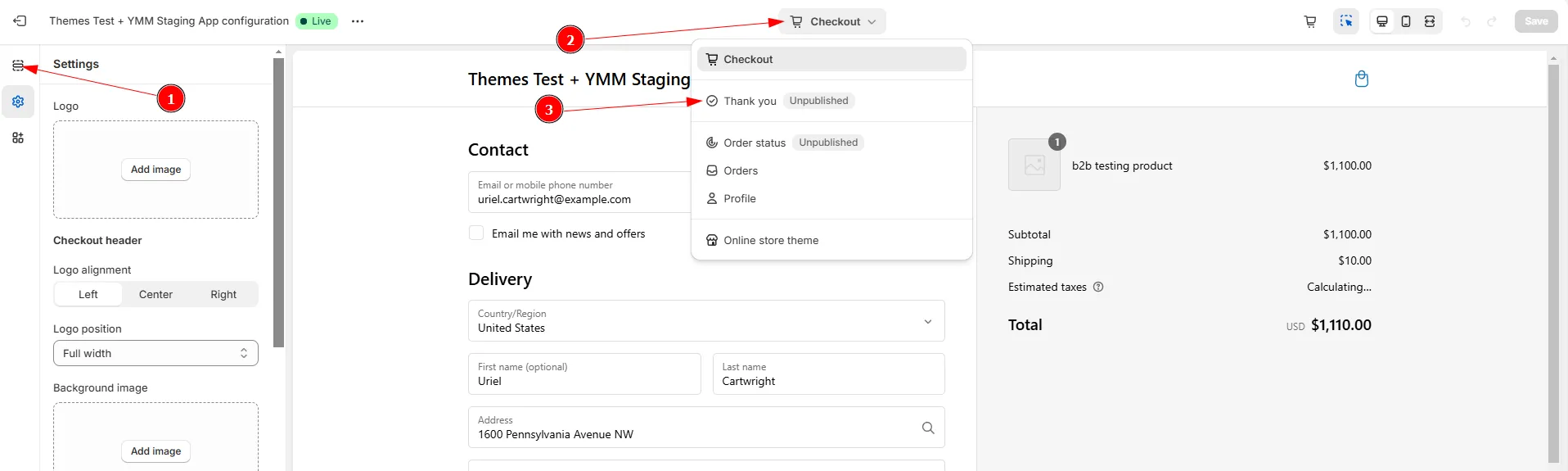
- In the dropdown at the top, select the page: Thank you, Order status, or Checkout (Shopify Plus only).
- In the Sections tab, click Add app block in the desired location and select Customer vehicle.
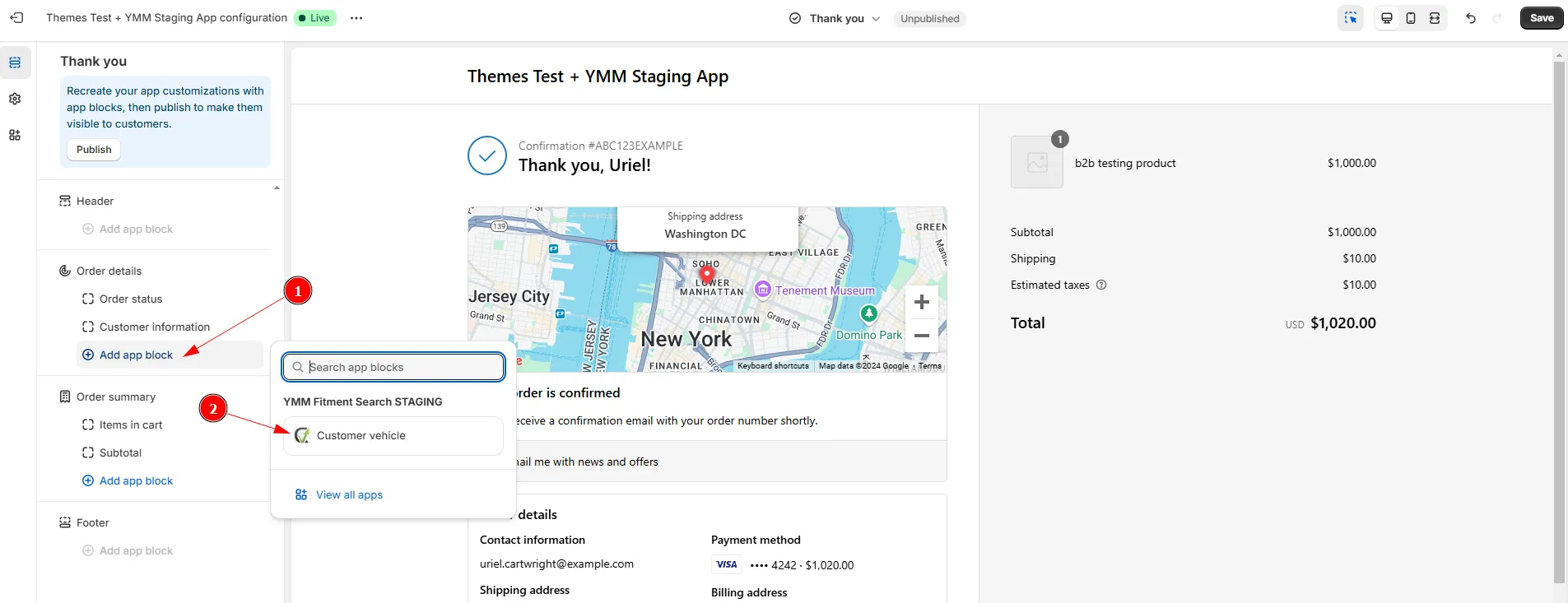
- Click Save.
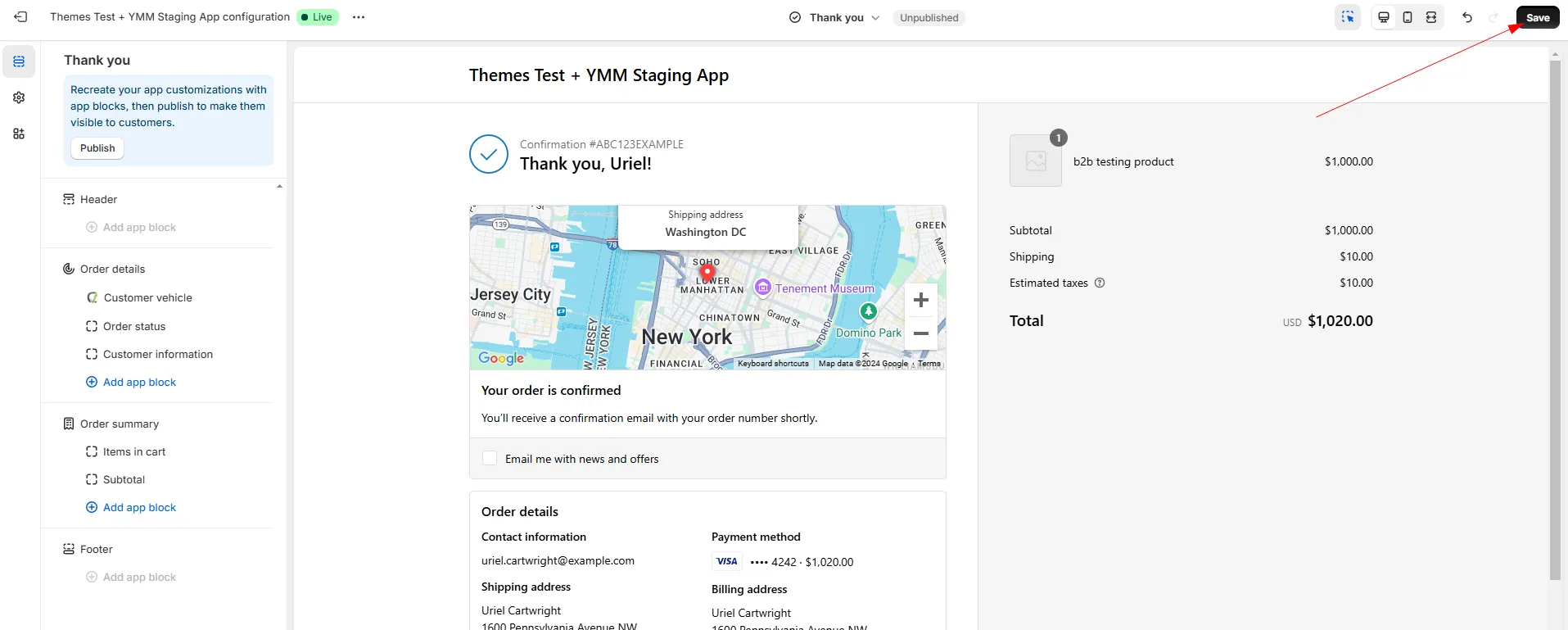
- Repeat for each page where you want the vehicle shown.
Upgrading from the legacy Thank you page integration
Section titled “Upgrading from the legacy Thank you page integration”If your store still uses the legacy Thank you and Order status pages (with additional scripts), Shopify asks you to recreate app customizations before upgrading.
- Go to Settings → Checkout and click Review customizations.
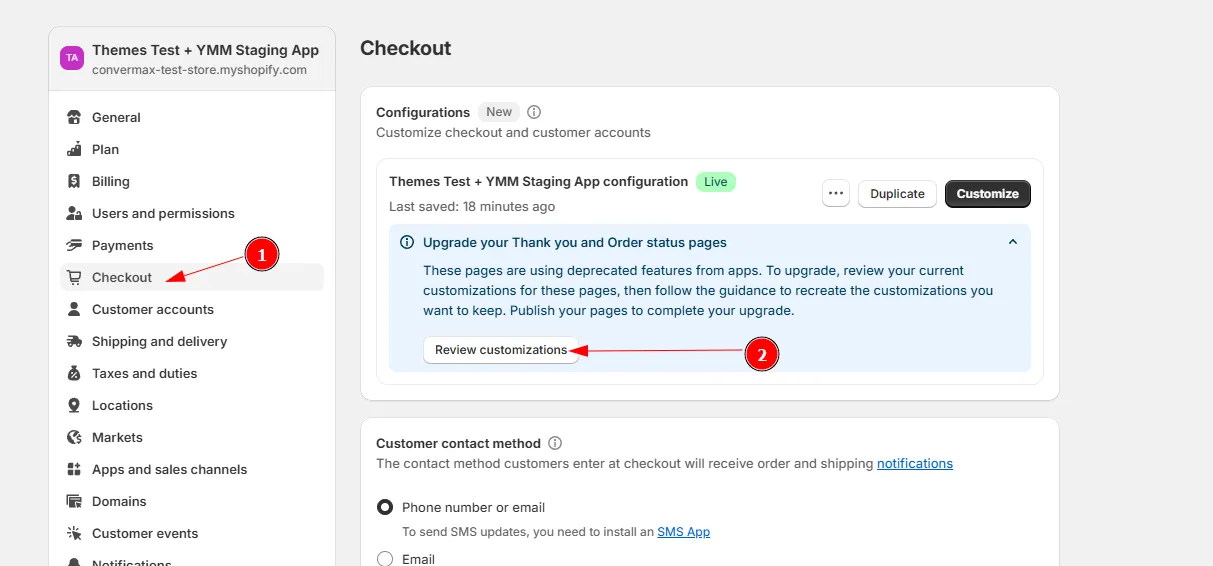
- The Customizations report lists the apps whose customizations must be recreated. If you see other apps besides ours, update their customizations too before publishing the upgrade.
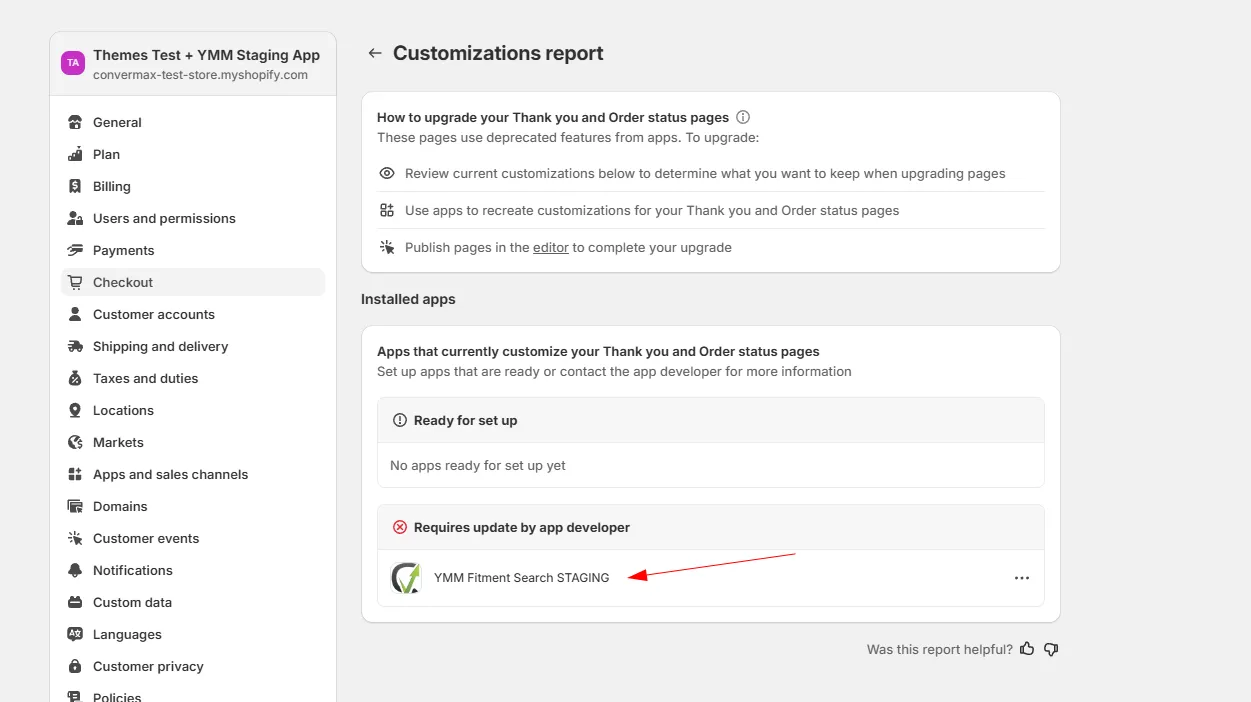
- Add the Customer vehicle block as described above.
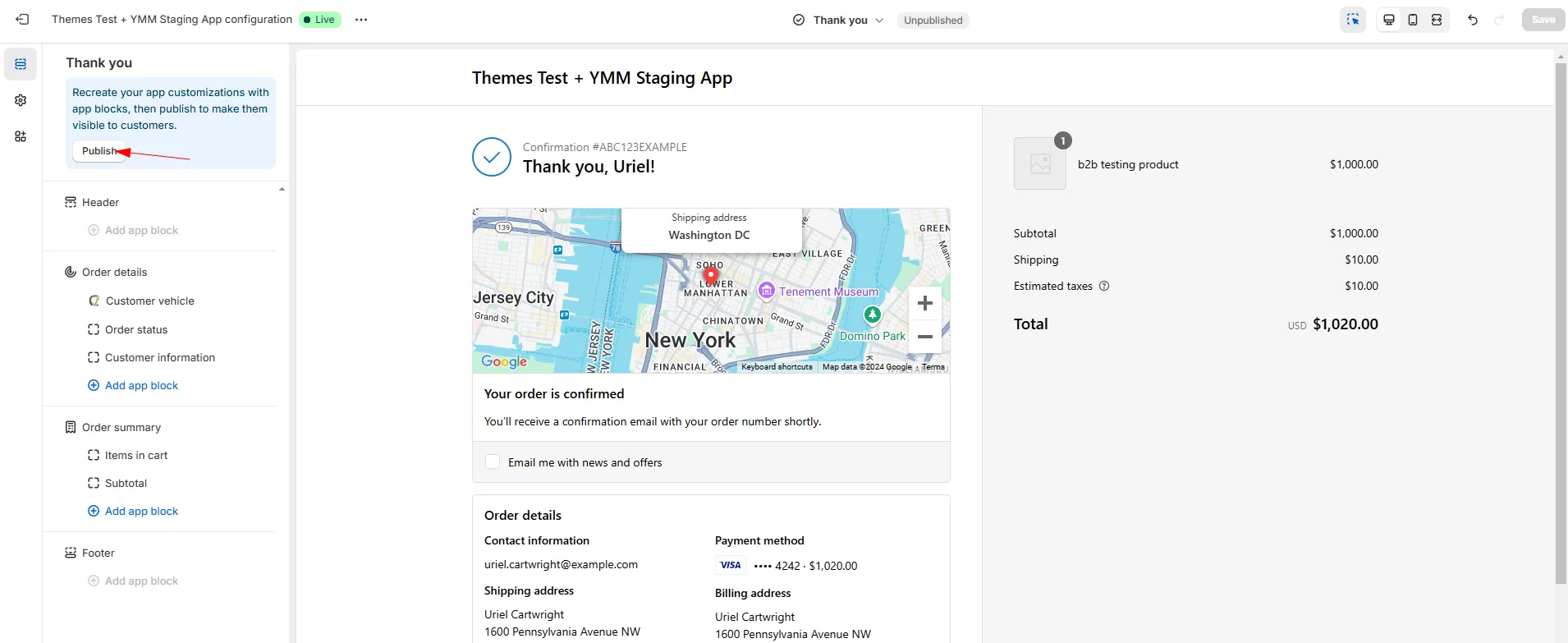
- Click Publish to complete the upgrade.