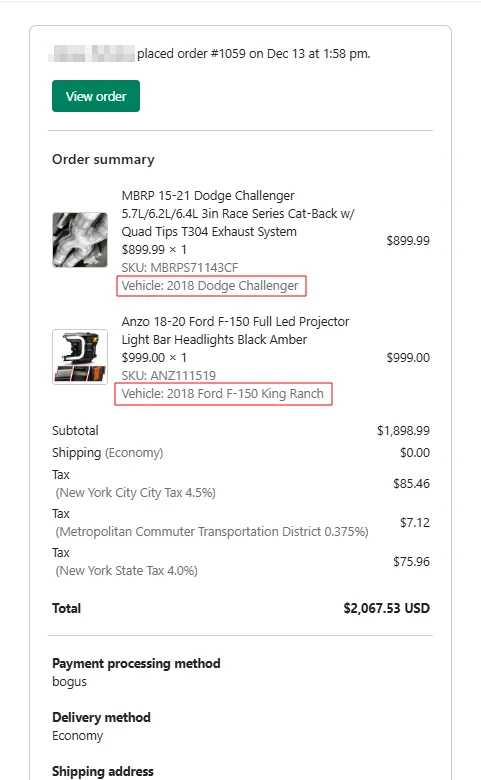
Where we store a customer vehicle and how to view it
Saving the Customer’s Vehicle
Section titled “Saving the Customer’s Vehicle”Saving a customer’s selected vehicle allows the store to maintain a consistent and personalized experience by recognizing and remembering their choice across sessions and interactions. When the user is logged in, this selection is automatically synced and restored on other devices, ensuring their garage remains available wherever they return.
By storing the vehicle information, you can:
- Support checkout validation – confirm that items in the cart match the saved vehicle, preventing ordering mistakes.
- Enable personalized marketing – use the stored vehicle data for recommendations, promotions, and follow-up emails.
Vehicle saving provides convenience for the customer and accuracy for the store.
Standard Options (work out of the box)
Section titled “Standard Options (work out of the box)”These options are supported natively and cover the majority of use cases:
- Klaviyo - saves the selected vehicle and garage to the customer profile, See more.
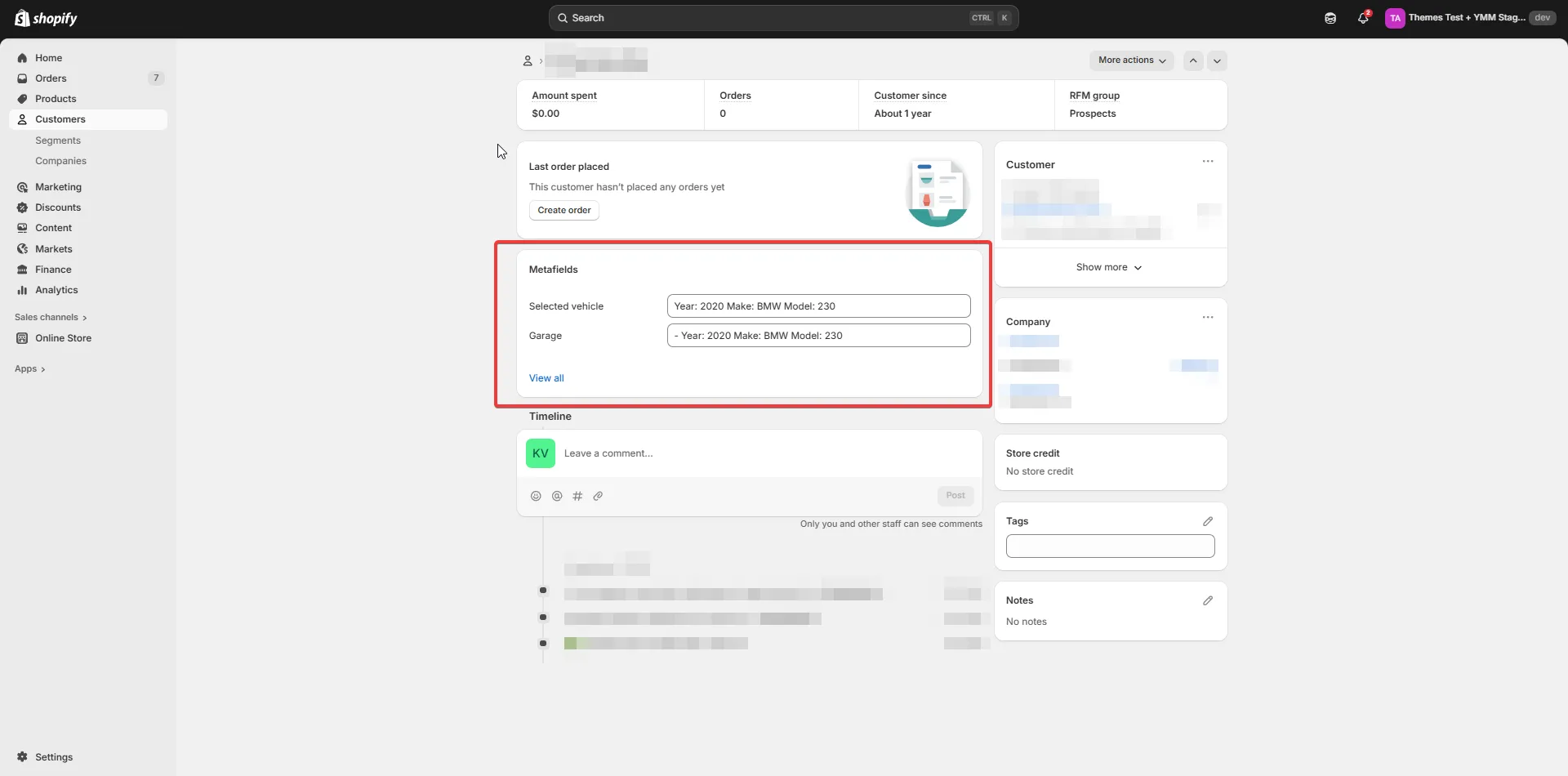
- Customer metafields – saves the selected vehicle and garage at the customer level.
- Cart and order attributes – the last selected vehicle is written into the
Vehiclecart attribute as a plain text summary, and each vehicle field as a separate attribute. The attributes are copied to the order, where staff can see them in Orders → (order) → Additional details. The Customer vehicle checkout block shows the sameVehicleattribute to the customer.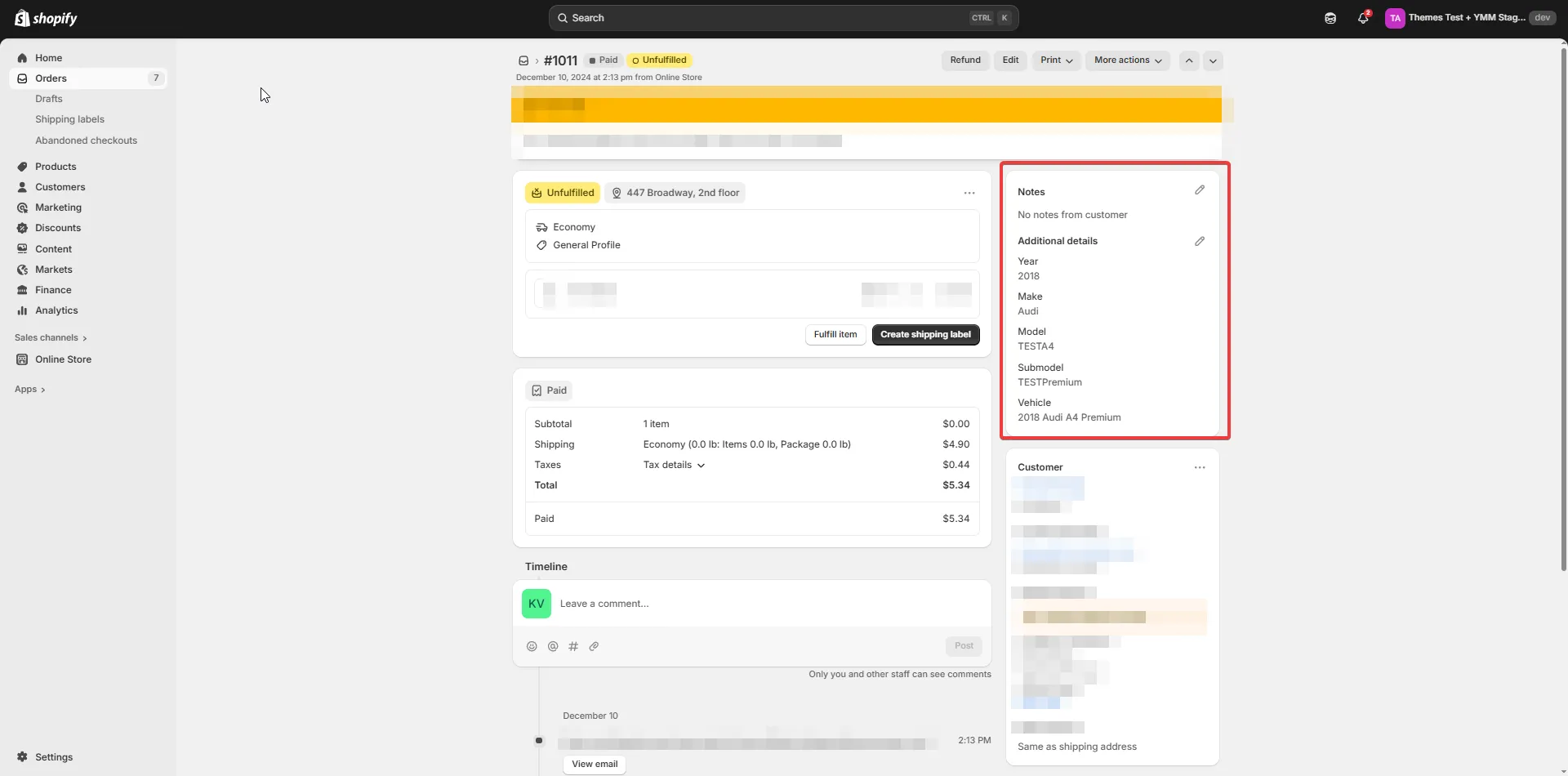
- Order line item properties – the
Fitmentline item property holds the result of fitment verification for the vehicle that was selected when the exact line item (product) was added to cart.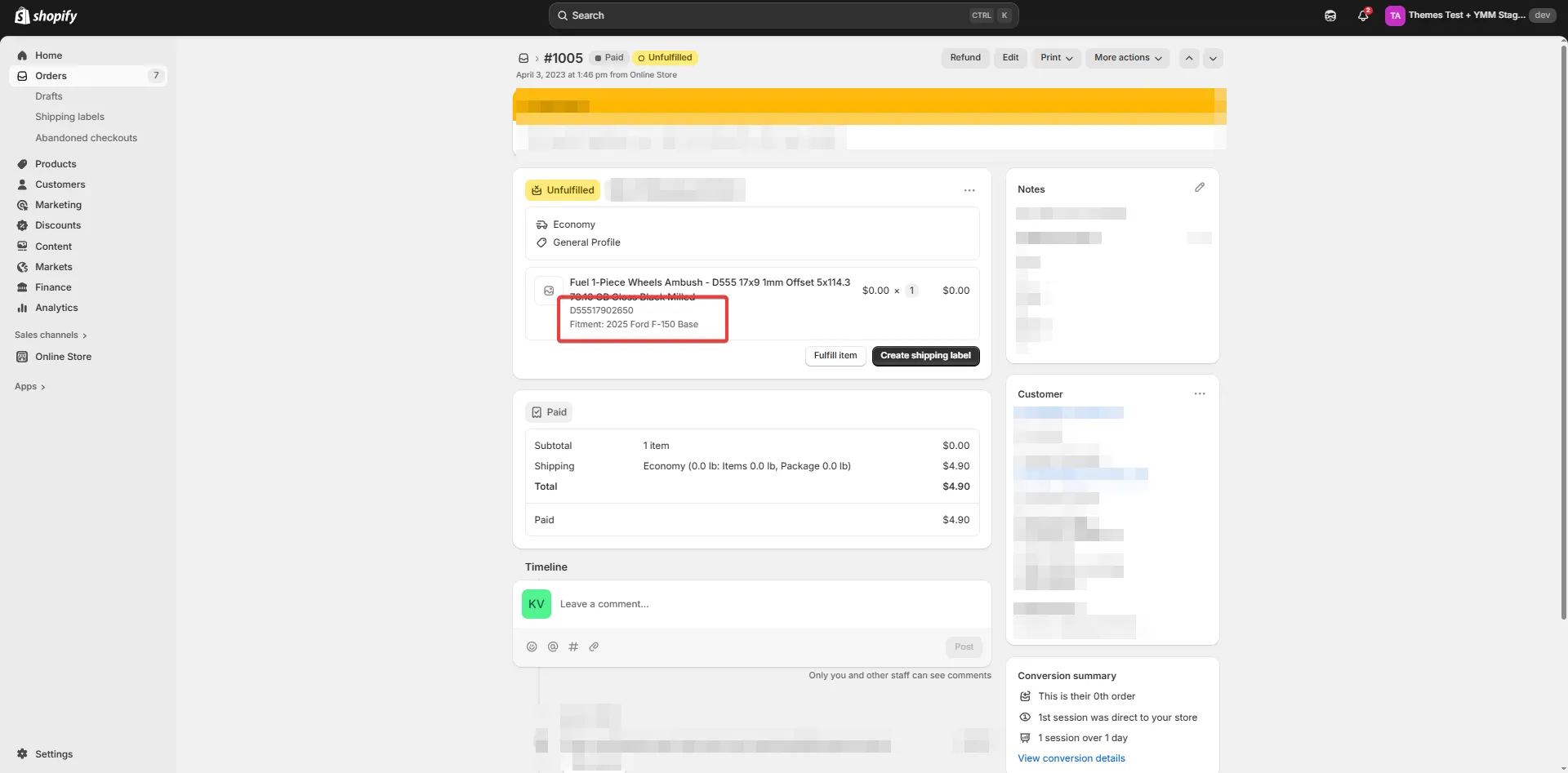
Optional Saving Options
Section titled “Optional Saving Options”How to add a vehicle to an order email
Section titled “How to add a vehicle to an order email”-
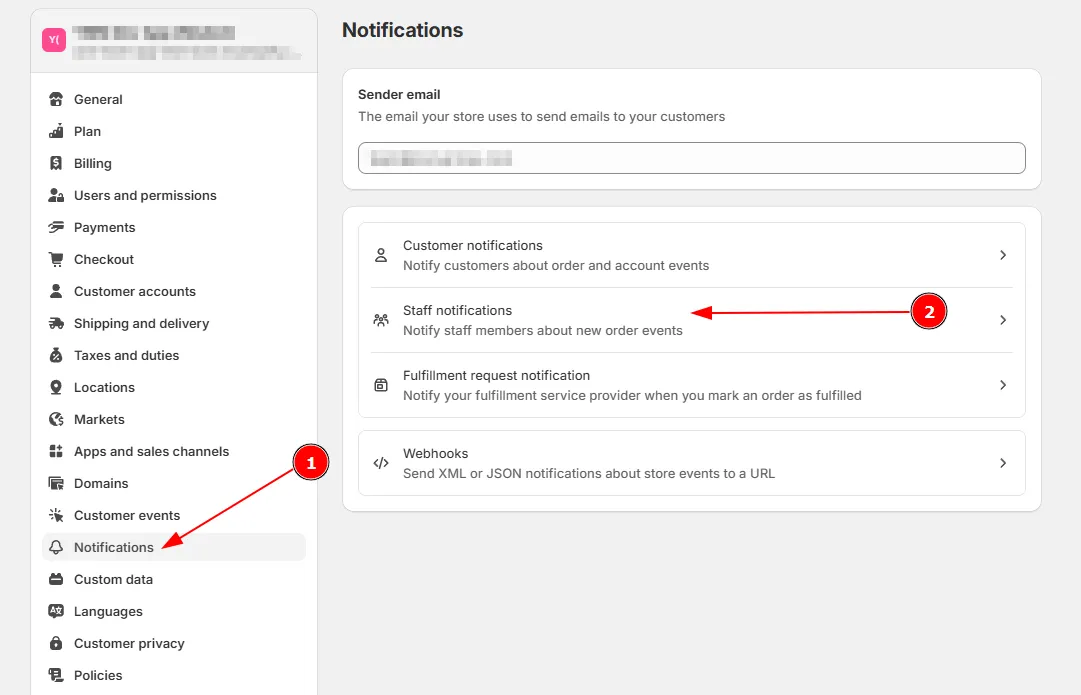
Go to Settings → Notifications → Staff notifications in the Shopify admin.
-
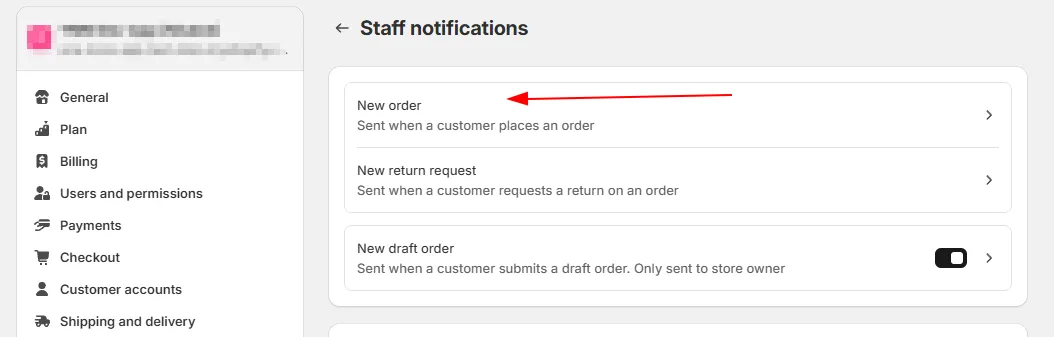
Click New order.
-
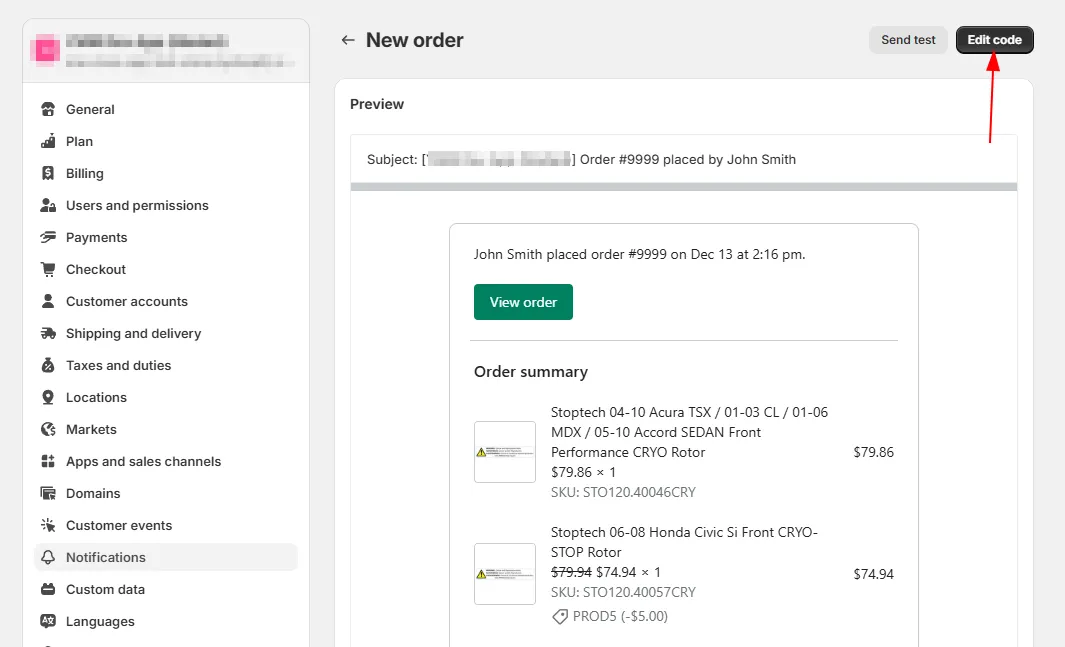
Click Edit code.
-
Add the following code to the code editor at the bottom. For example, place it after the Shipping address block.
{%- if attributes.Vehicle -%}<table class="row"><tr><td class="customer-info__item customer-info__item--last"><strong>Vehicle</strong><br /><p>{{ attributes.Vehicle }}</p></td></tr></table>{%- endif -%}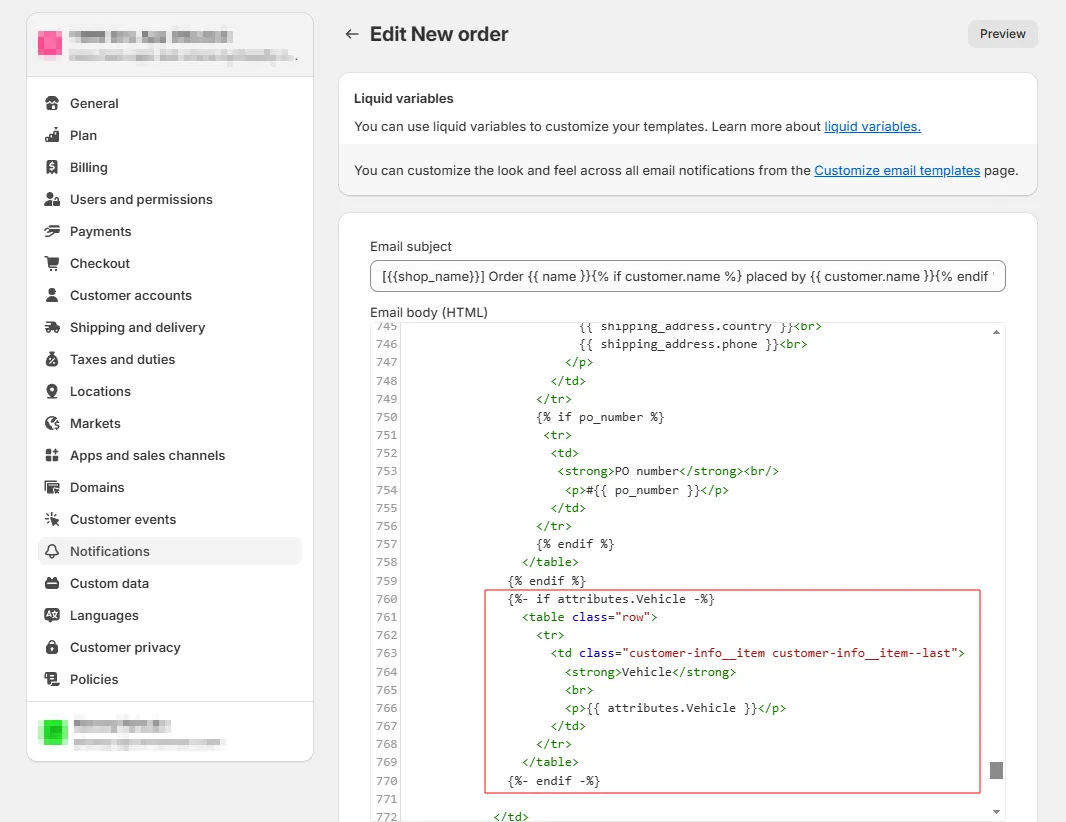
-
Click Save.
-
Now the vehicle is added to the order email.
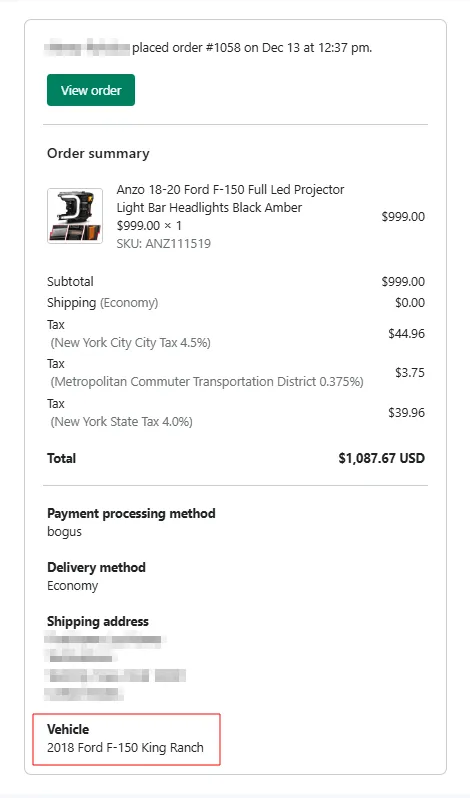
How to add a vehicle to each product in an order email
Section titled “How to add a vehicle to each product in an order email”-
Go to Settings → Notifications → Staff notifications in the Shopify admin.
-
Click New order.
-
Click Edit code.
-
Add the following code to the code editor in the line items processing block.
{% if line.properties.Fitment %}<div class="order-list__item-variant">Fitment: {{ line.properties.Fitment }}</div>{% endif %}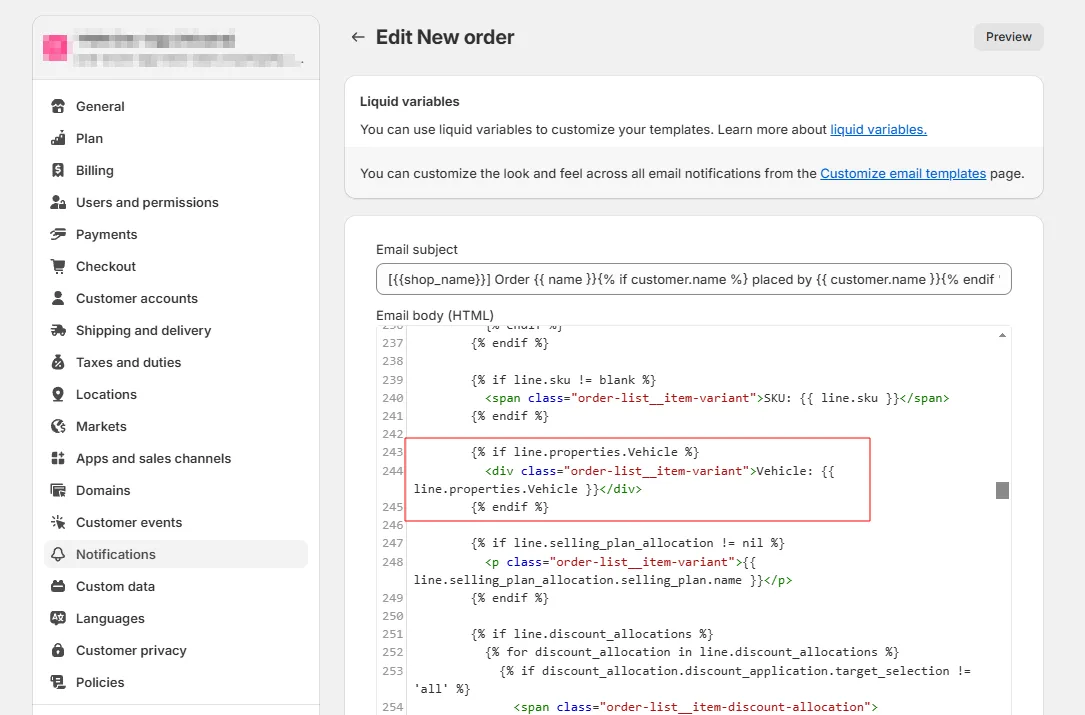
- Click Save.
- Now customer’s vehicle appear in the order details email for each product.