Fitment Editor
Where to find Fitment Editor
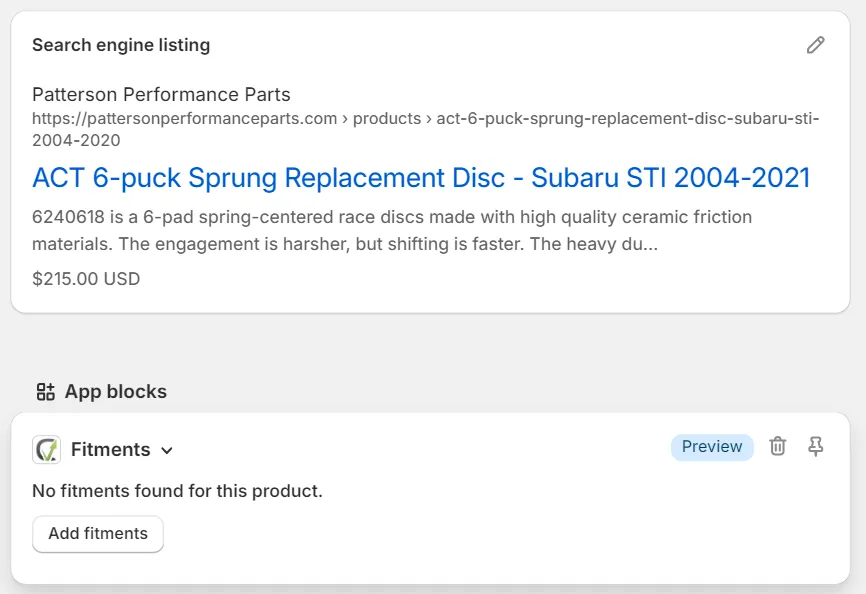
Section titled “Where to find Fitment Editor”To find the Fitment Editor, go to the Shopify admin panel and navigate to the product for which you want to add fitment data.
You will find the Fitment Editor at the bottom of the page.
Restrictions
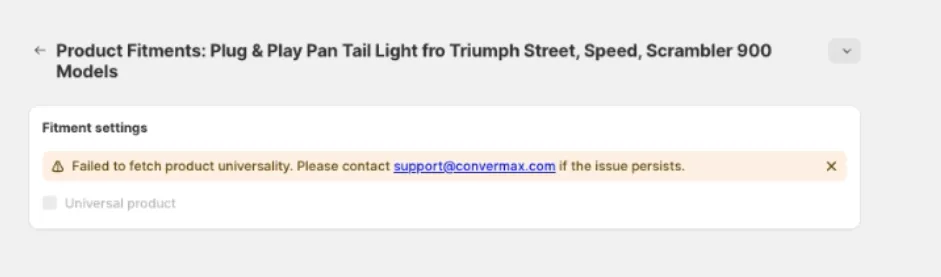
Section titled “Restrictions”The product must have non-empty vendor and SKU fields. If either is empty, the editor will display the error from the screenshot below.
Override existing fitment data
Section titled “Override existing fitment data”You can override product fitment data from other sources.
Choose a product and go to the Fitment Editor block.
Then click the Override and edit button.
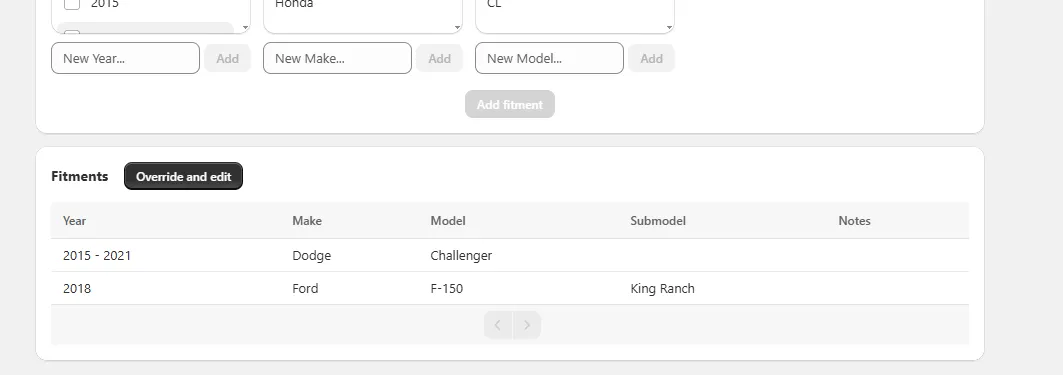
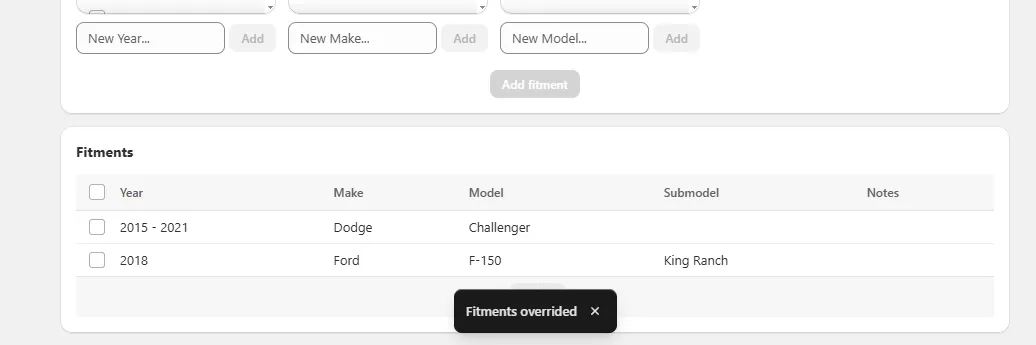
Then, you can edit or delete fitment data. It will override all existing fitment data for the product.
Adding new fitment data
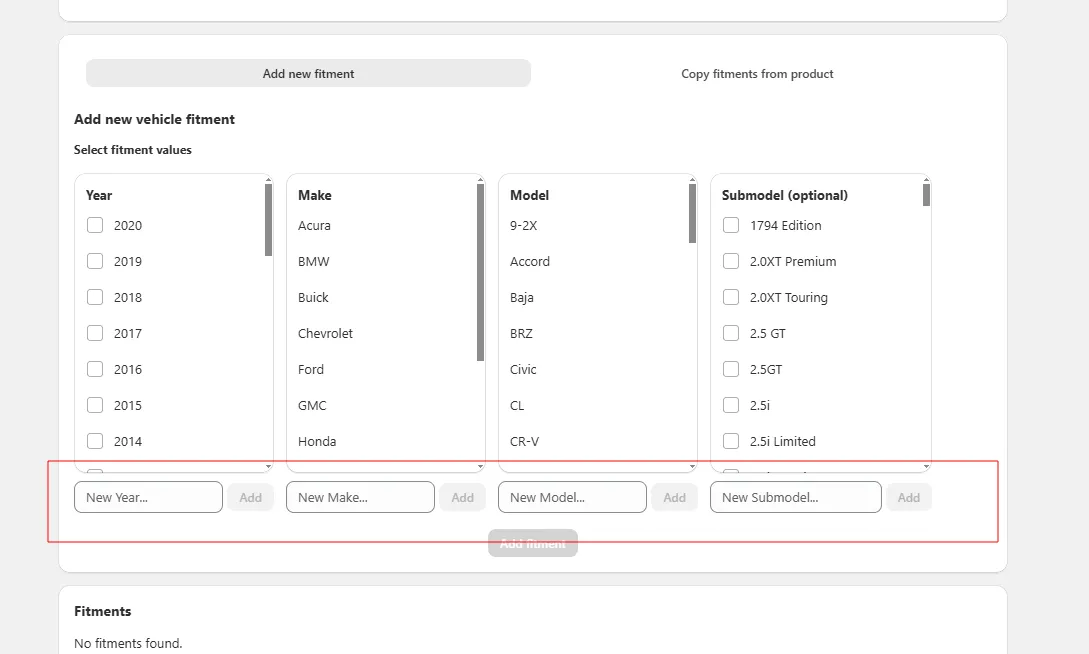
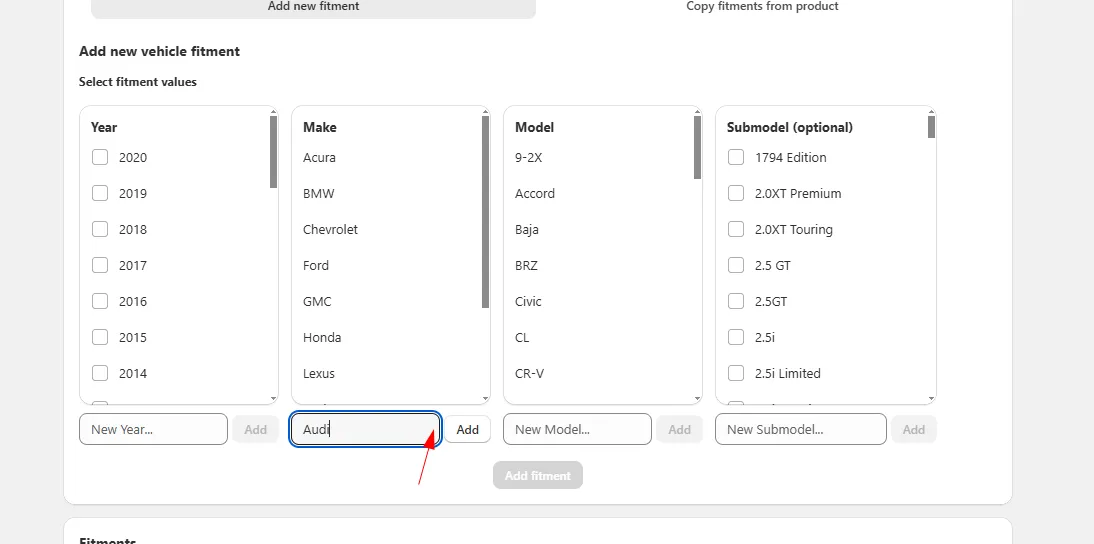
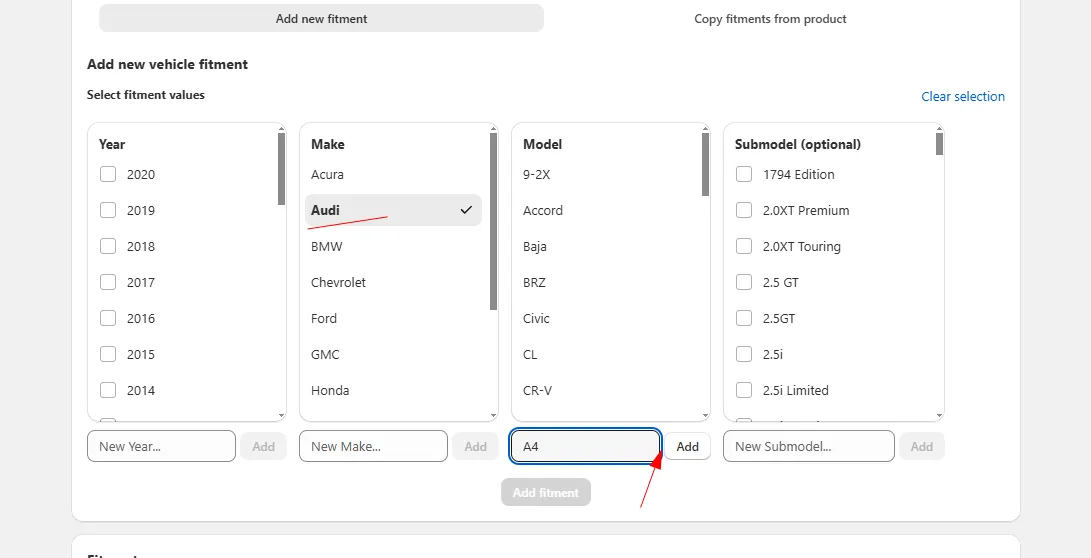
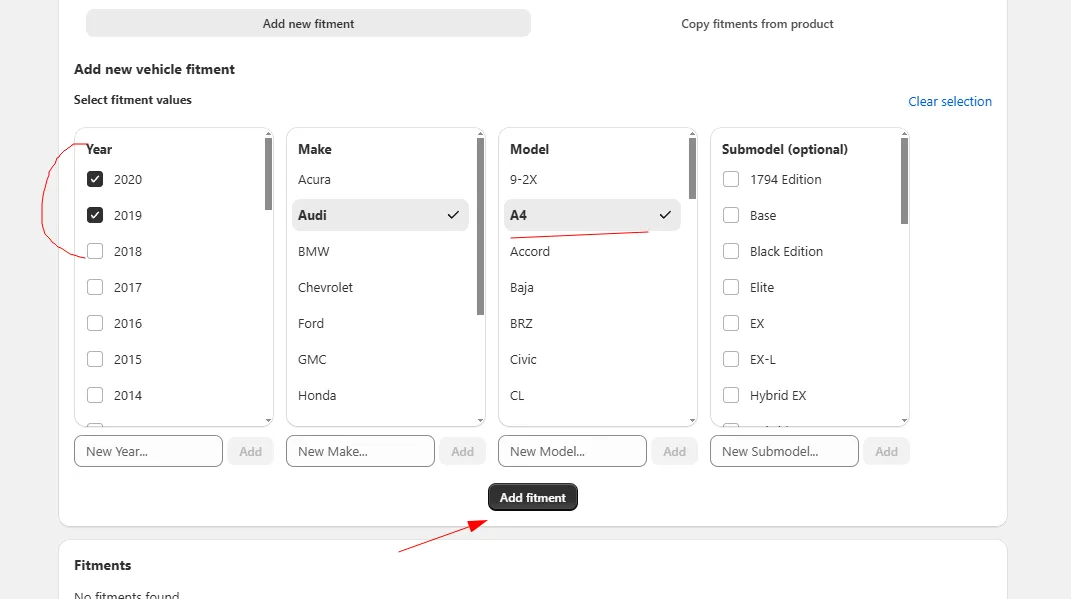
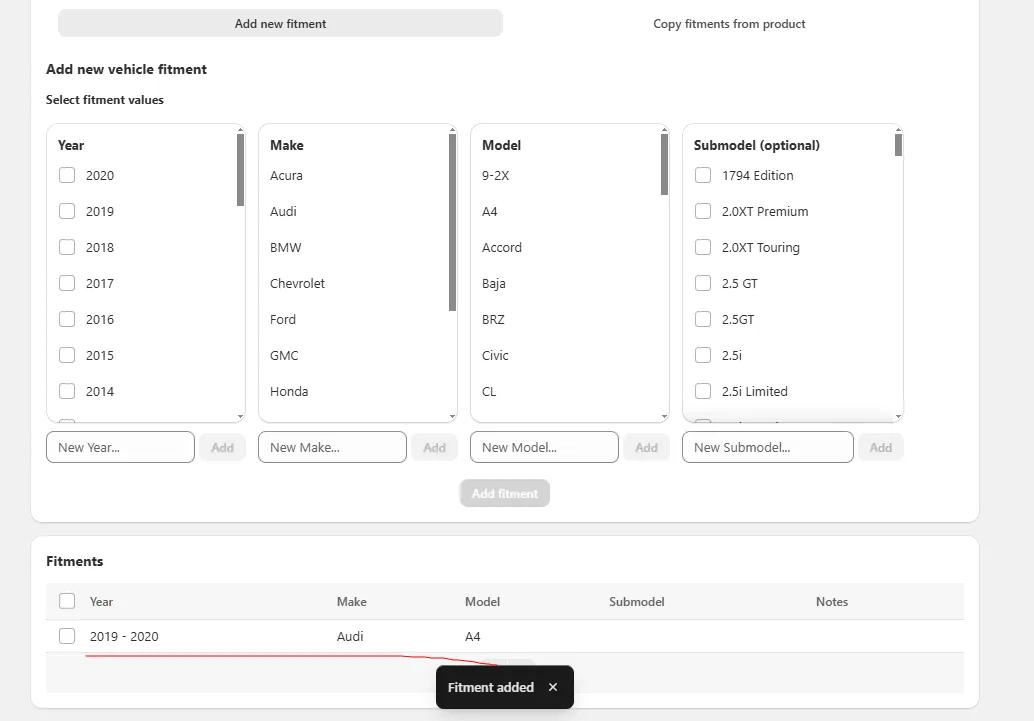
Section titled “Adding new fitment data”You can add options from existing values or add your own as it is shown below.
On a new store
Section titled “On a new store”On a store without fitment data, the Year, Make, and Model lists are empty. Add the values yourself:
- In the New Year field, type a year and click Add. Tick the added value.
- Repeat with New Make and New Model.
- Click Add fitment. This adds the vehicle to the list of unsaved changes.
- Click Save in the save bar at the top of the page and wait for the “Fitment saved” message.
Values you add are marked New. They become available in the lists for other products after the next indexing.
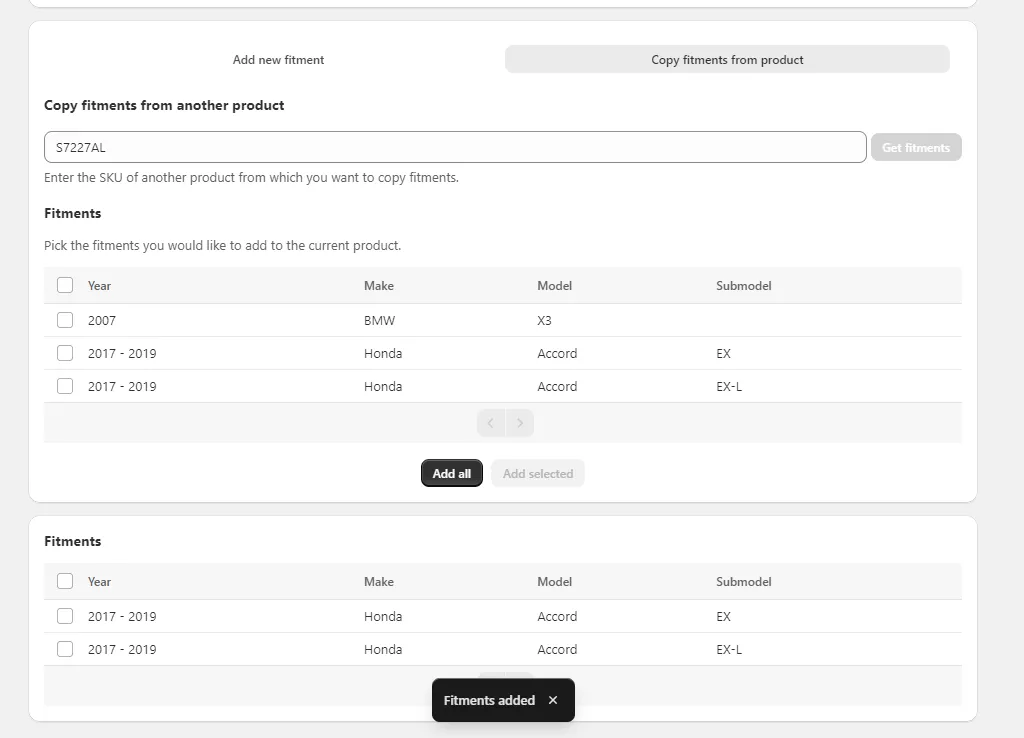
Copy fitment data from another product
Section titled “Copy fitment data from another product”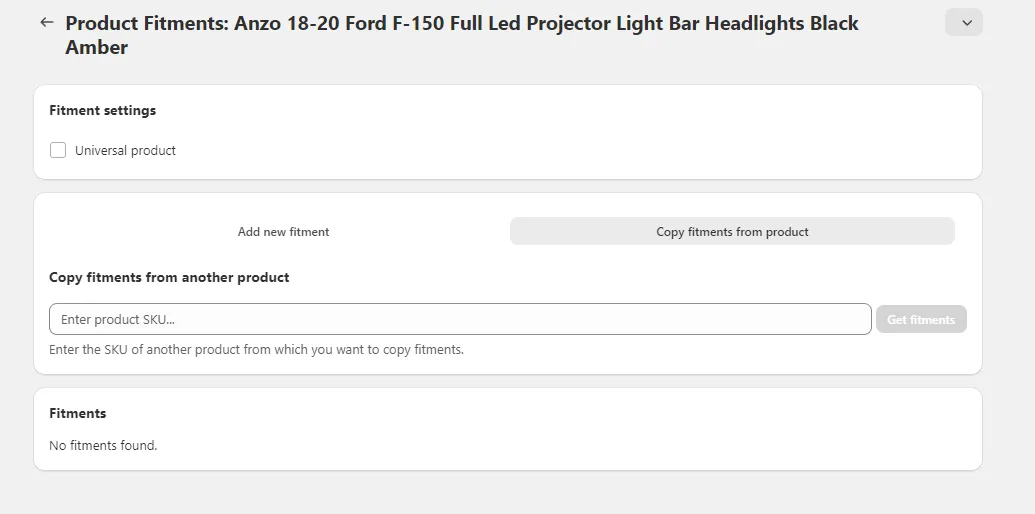
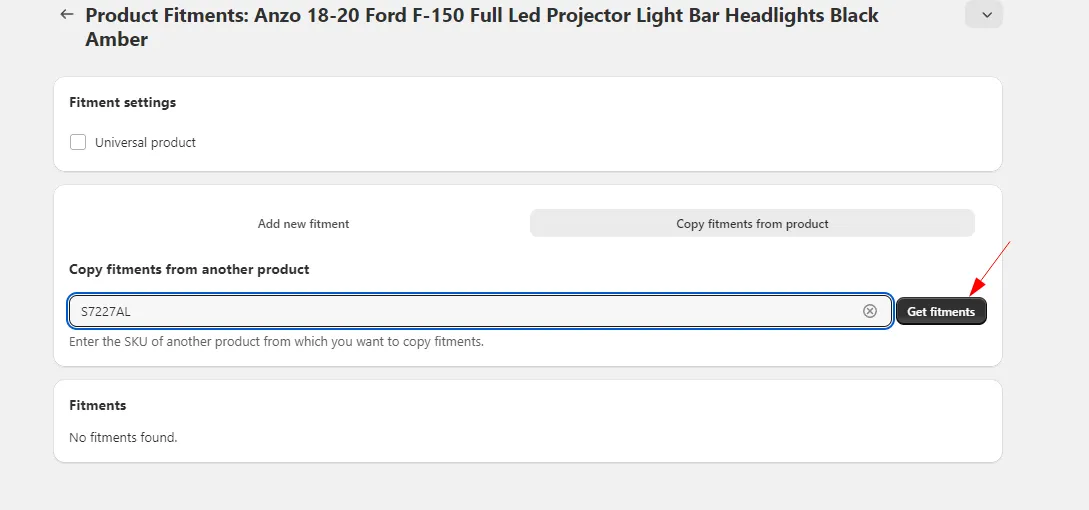
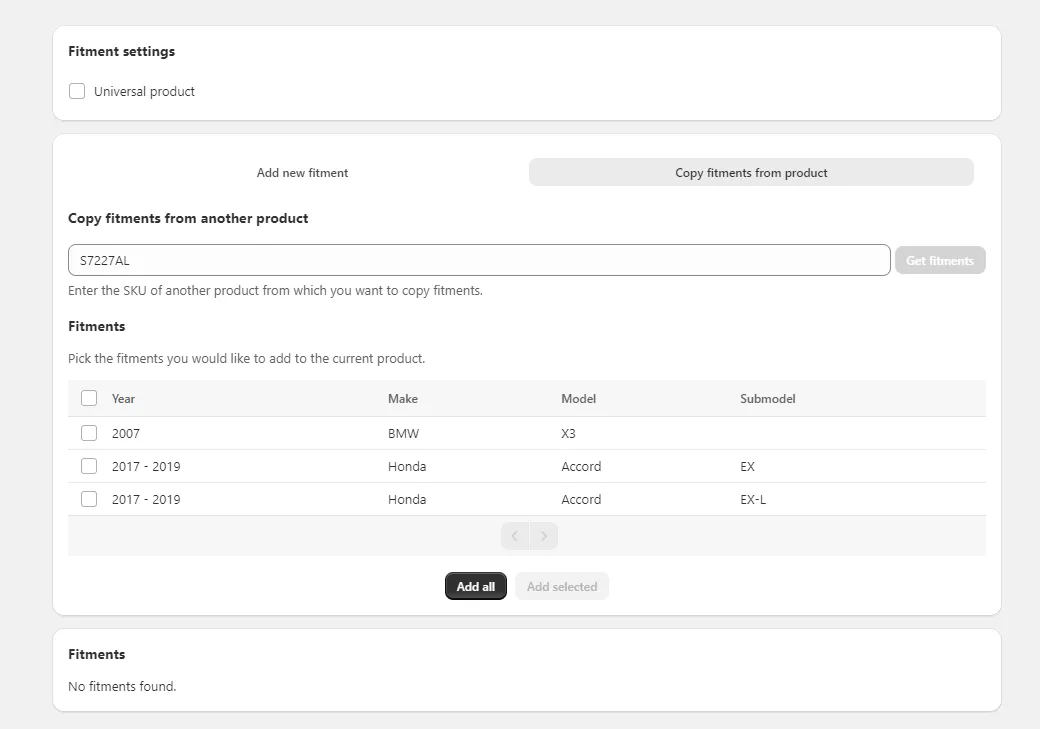
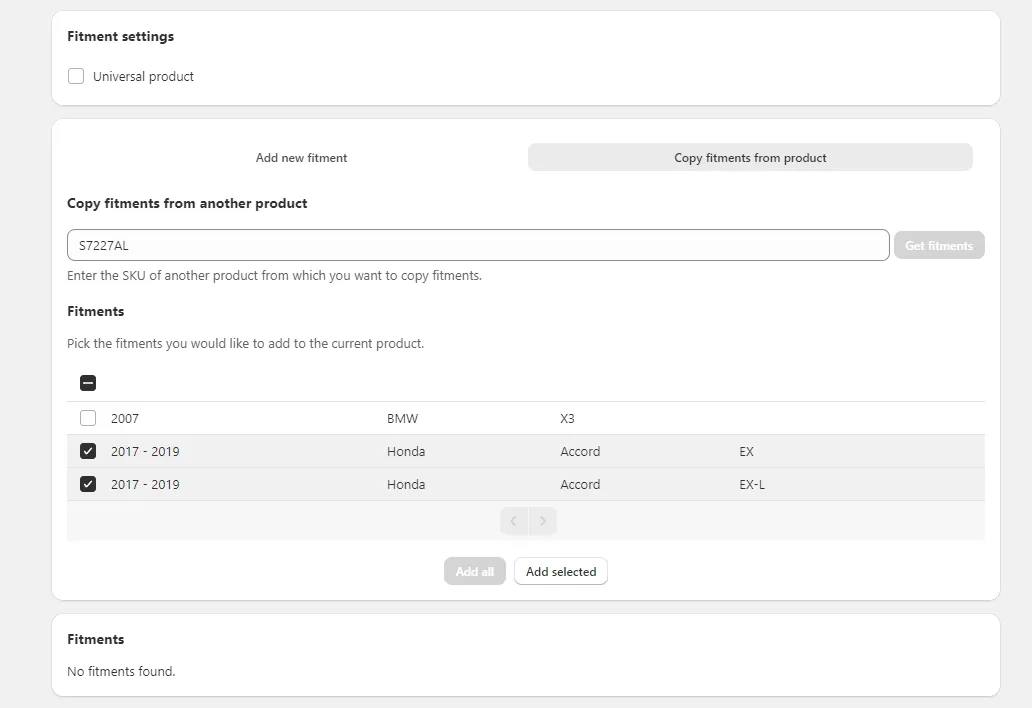
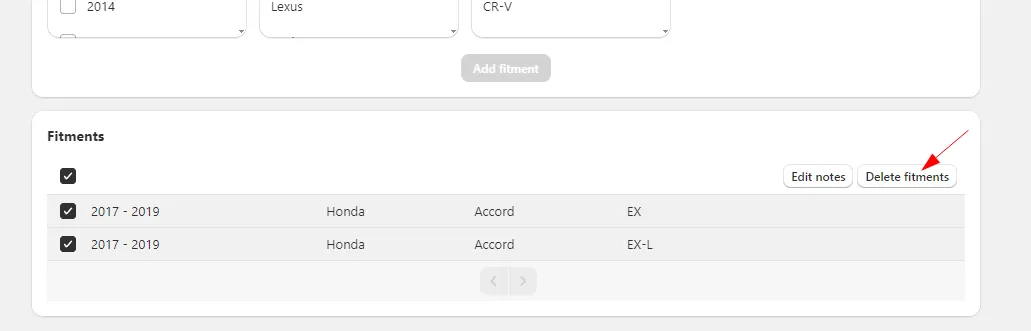
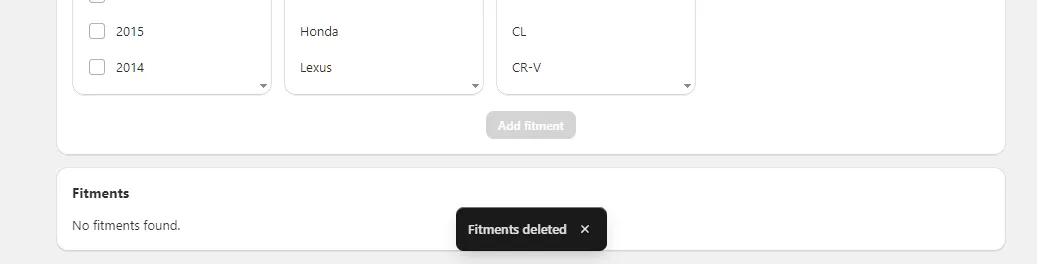
Delete fitment data
Section titled “Delete fitment data”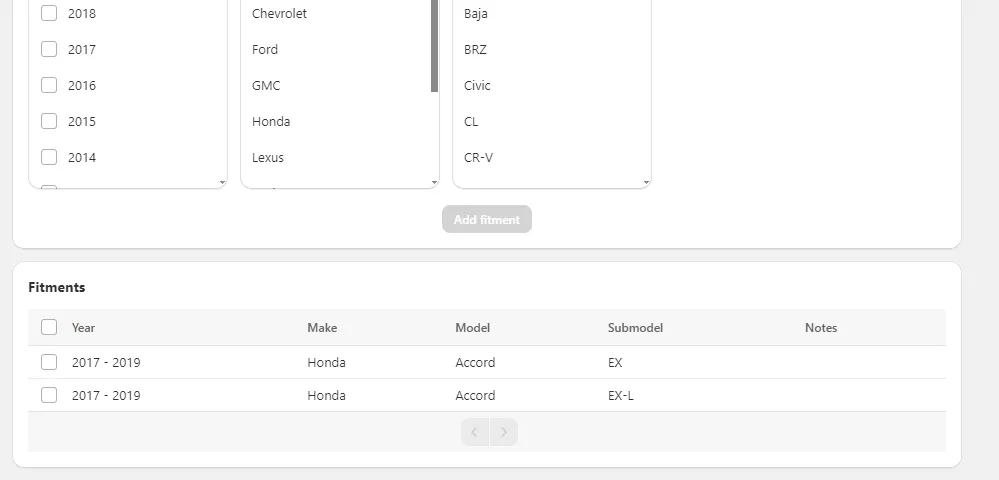
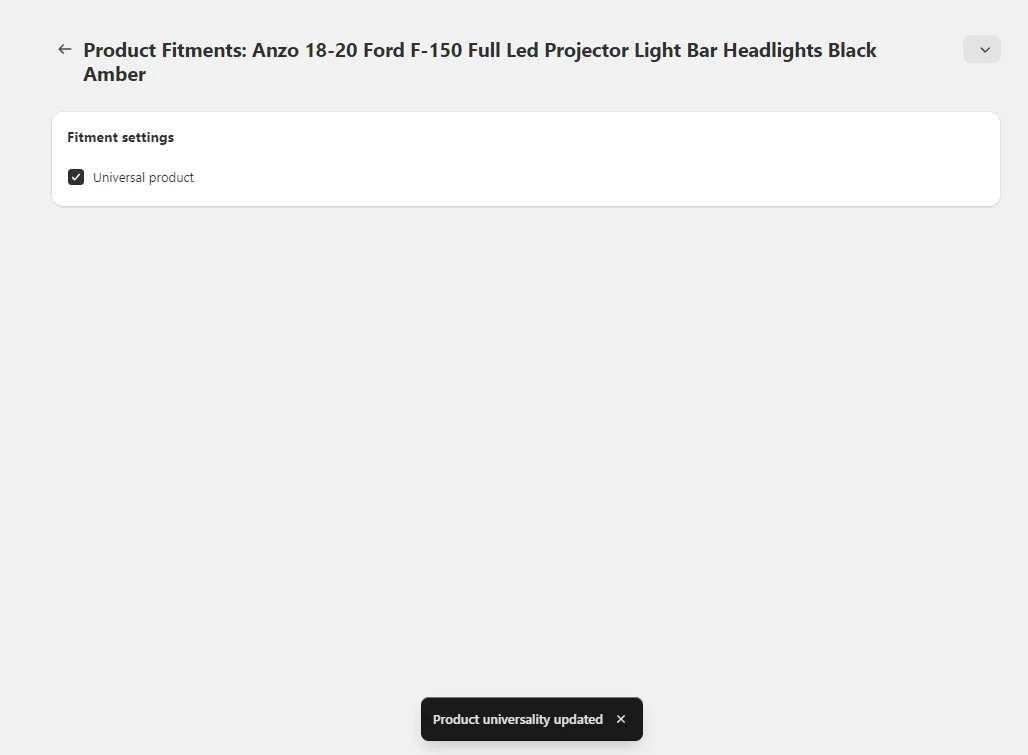
Make product Universal fit
Section titled “Make product Universal fit”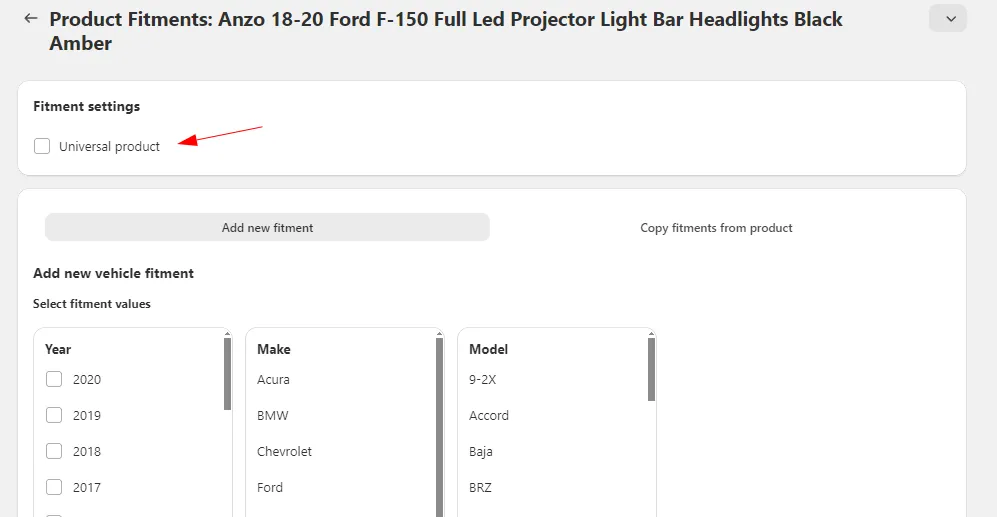
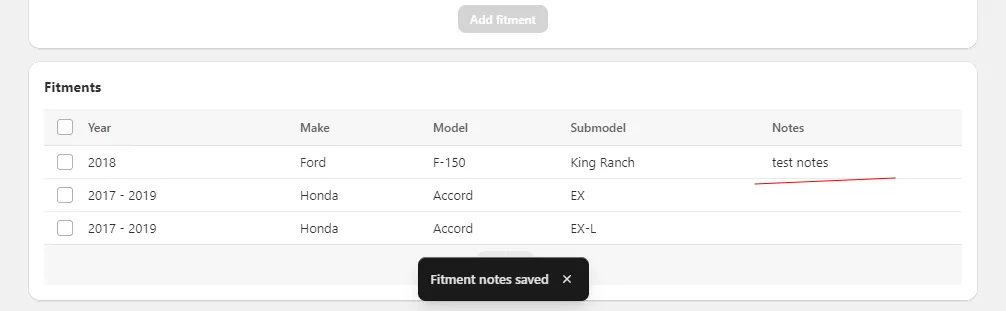
You can add Notes to fitment data.
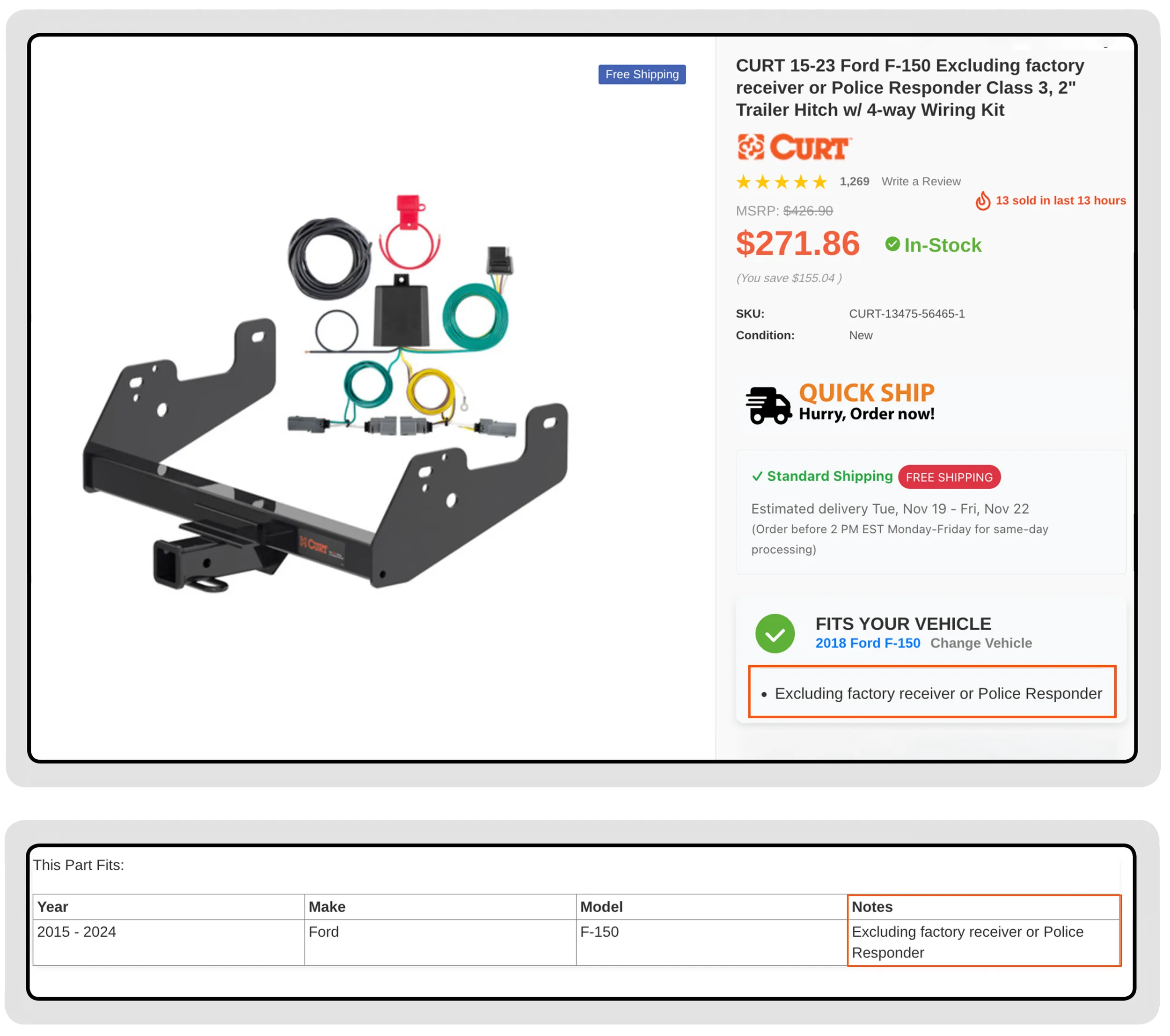
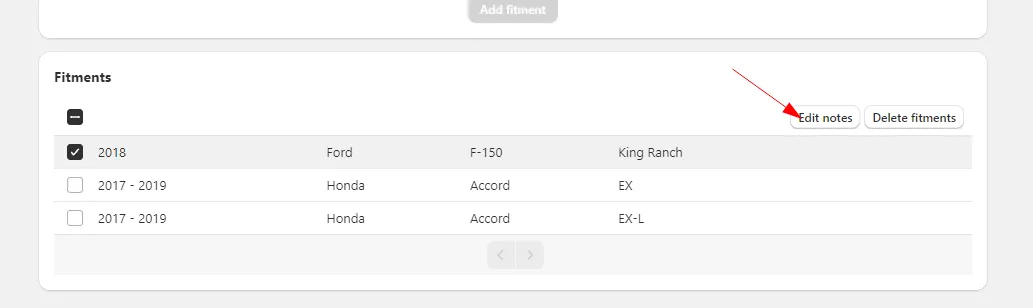
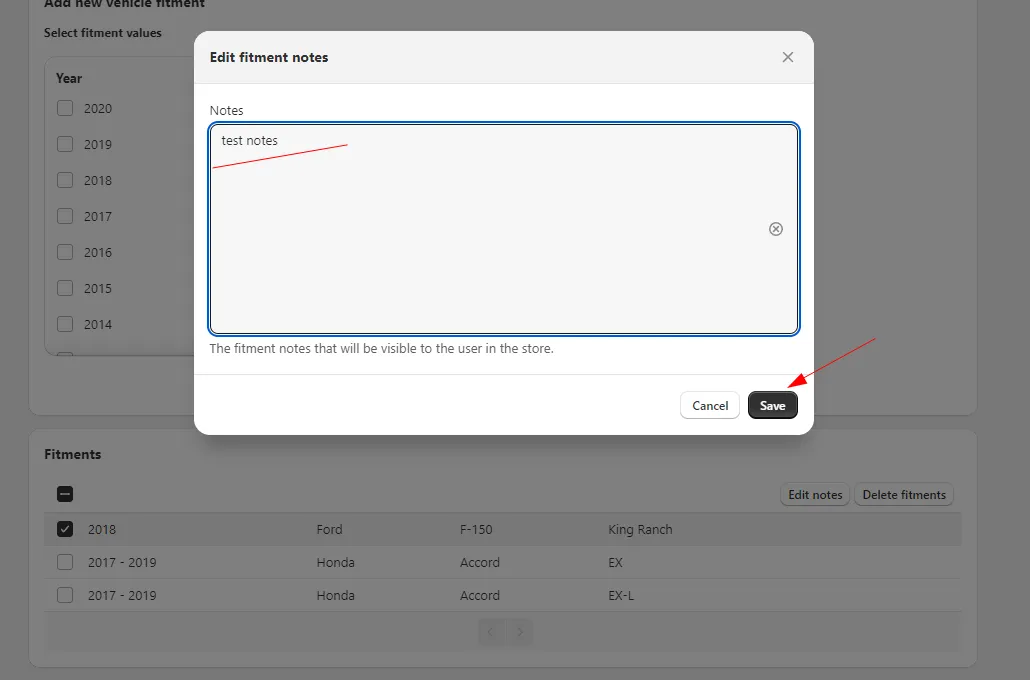
To add Notes, select a fitment row (or even several rows!) in the editor and click the Edit notes button: