

Fitment Data Integrations
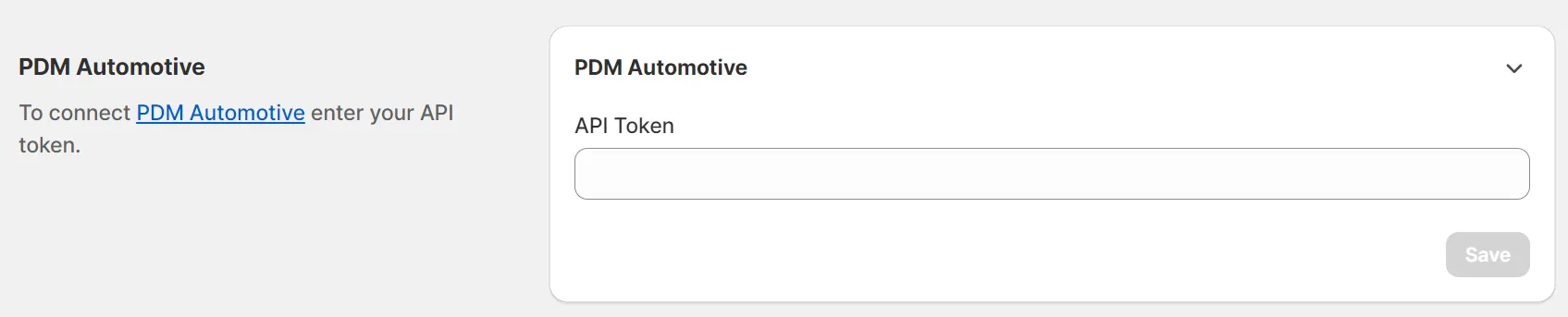
PDM Automotive
Section titled “PDM Automotive”If you have a PDM account with API access, you can connect it to the app.
Follow the PDM’s instructions to get the API token and fill it in the input field.
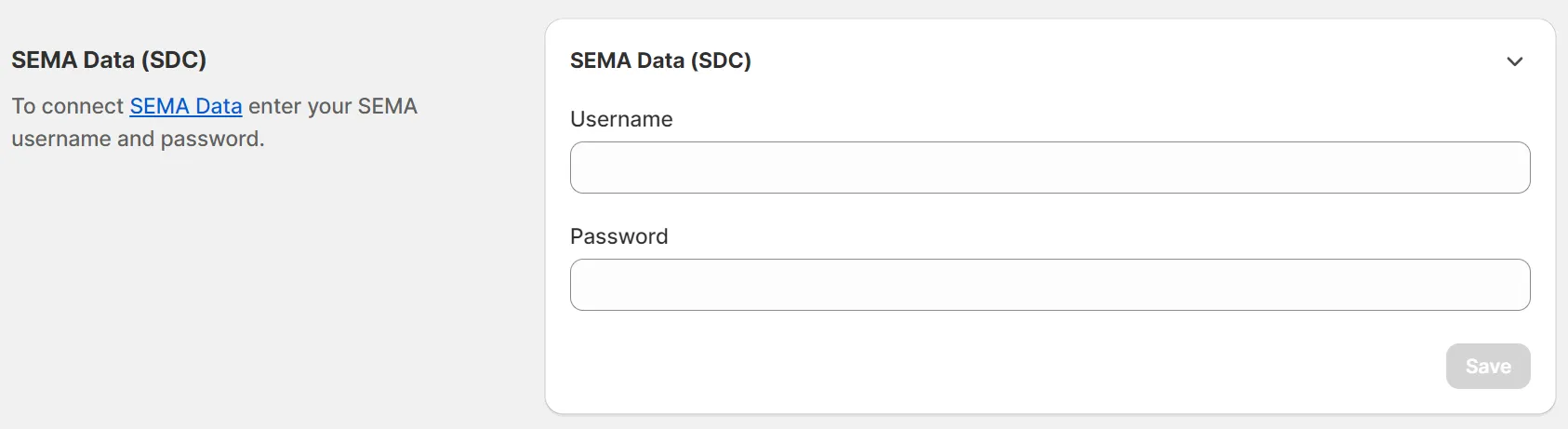
SEMA Data (SDC)
Section titled “SEMA Data (SDC)”Our app has a connection with SEMA Data - you just need to enter your SEMA username and password to generate an API token.
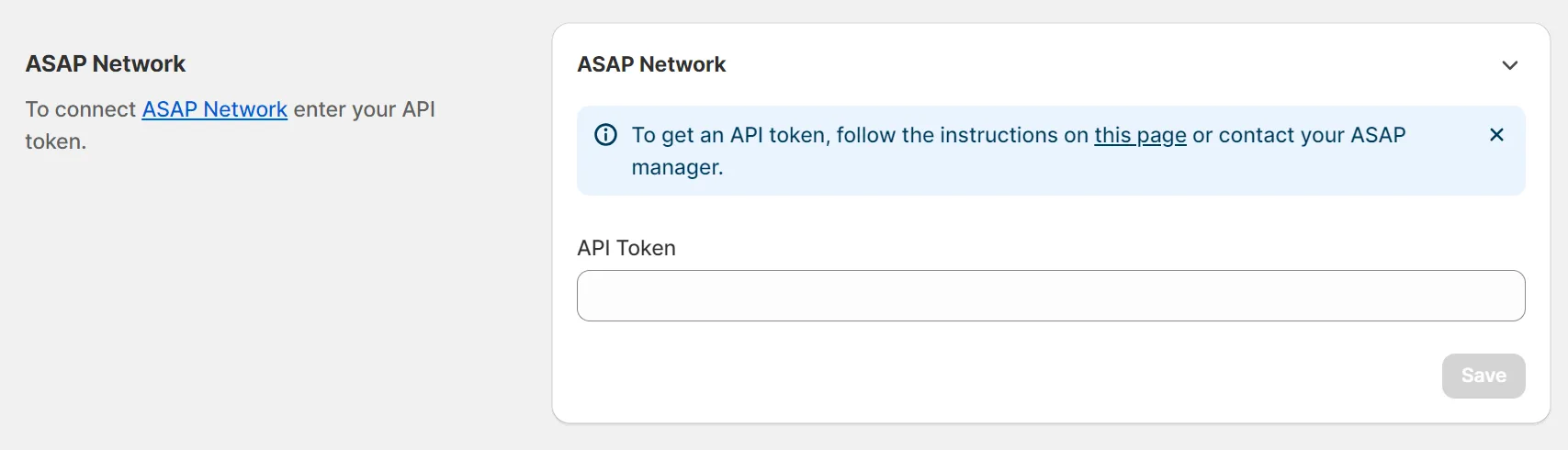
You can connect your ASAP account to the app. Go to the ASAP API page and log in to your account. Follow the instructions to generate your API token or ask for help from your ASAP manager. Enter the token in the blank field and confirm by clicking Save.
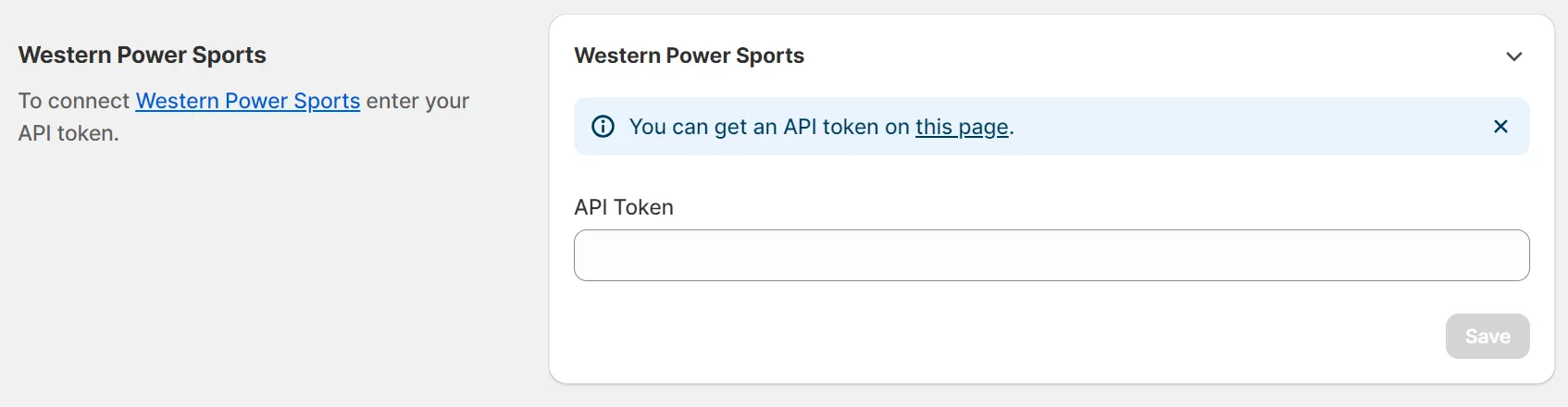
WPS (Western Power Sports)
Section titled “WPS (Western Power Sports)”If you have a WPS account, you can connect it to the app to pull fitment data. Go to the WPS website, log into your account, and copy your API token. Enter it in the blank field and confirm by clicking Save.
Parts Unlimited
Section titled “Parts Unlimited”If you have a Parts Unlimited API key, you can connect it to the app. Open the Integrations page, select Parts Unlimited, and enter your API token. To acquire an API key, you can contact your Dealer Development department at [email protected]. This data source additionally requires manual configuration on our end; we will email you once it’s ready for testing.
Turn 14 Distribution
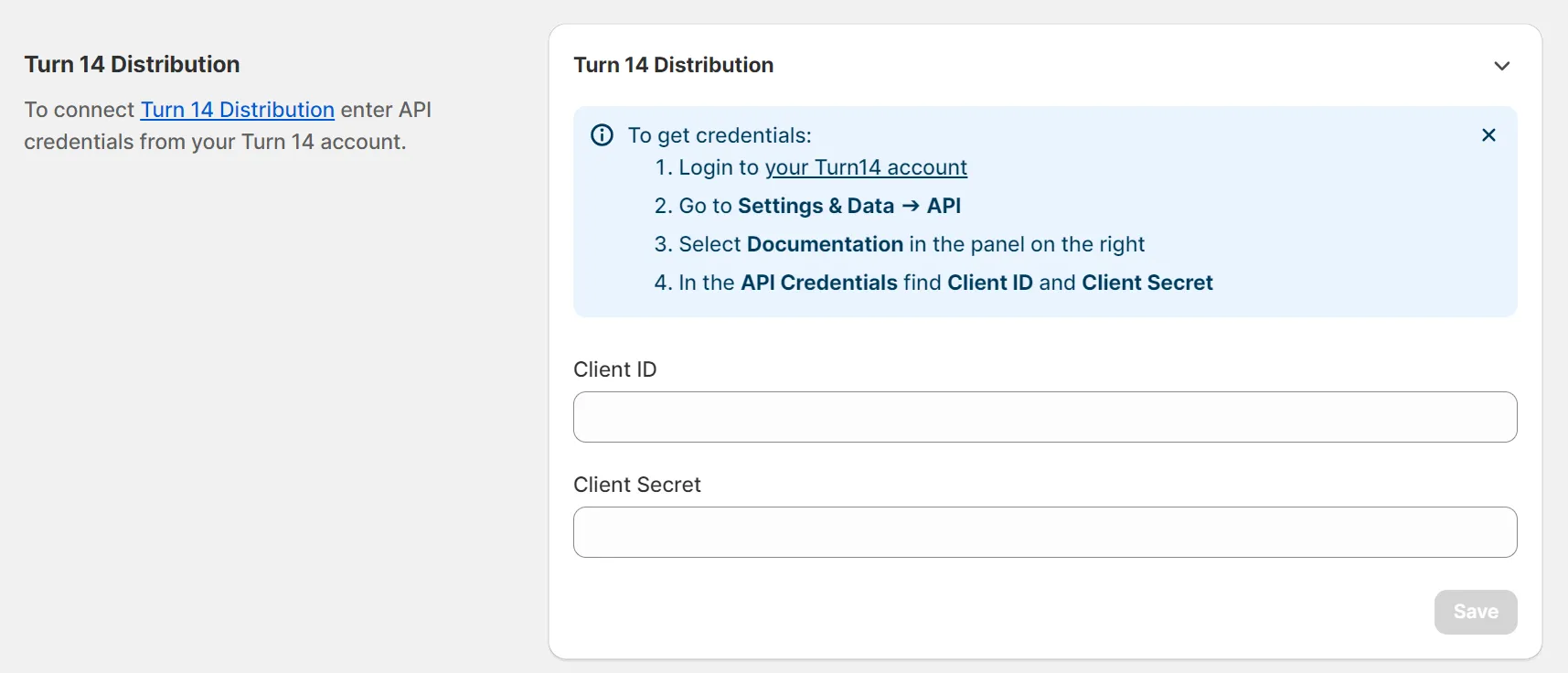
Section titled “Turn 14 Distribution”If you have a Turn 14 account, you can connect it via API to the app.
Go to the Turn 14 website and sign in to your account. Go to Settings & Data → API → Documentation. Find your Client ID and Client Secret on the API Credentials page, and copy them. Please return to the app configuration, enter them in the blank fields, and confirm by clicking Save.
PACE (Performance and Accessory Catalog Electronic)
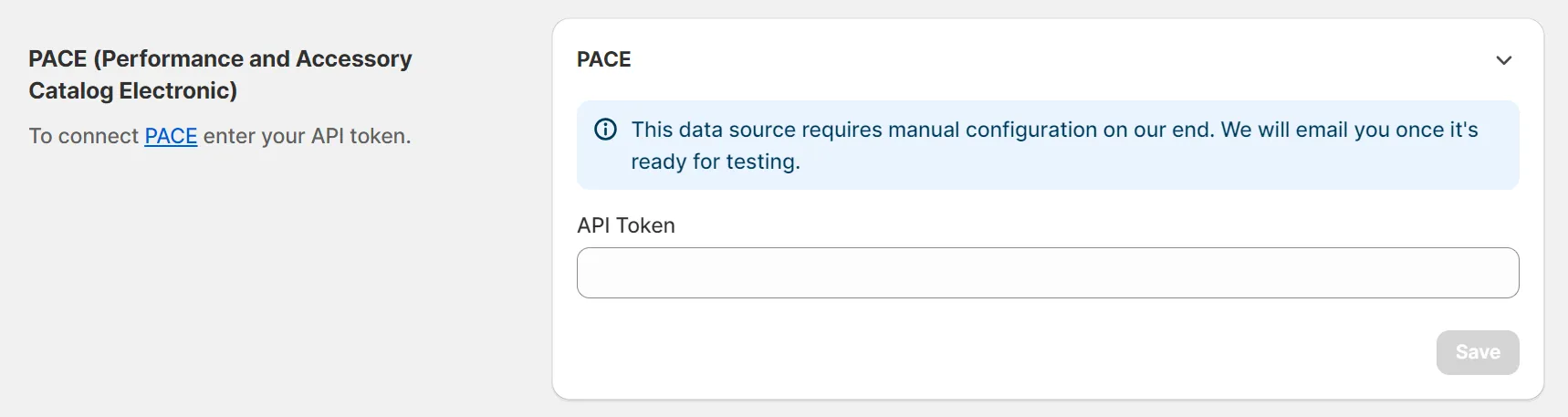
Section titled “PACE (Performance and Accessory Catalog Electronic)”You can connect your PACE account to the app, but this data source requires manual configuration on our end. We will email you once it’s ready for testing.
CatalogRack by DCI
Section titled “CatalogRack by DCI”We can connect your CatalogRack by DCI account to the app, but currently, it can be done only by sending your credentials to our support team.
Parts Authority
Section titled “Parts Authority”Parts Authority provides fitment data for its parts as ACES files. There is no direct connection to Parts Authority, so the app loads these files as your own fitment data.
To connect them, put the ACES files in a Google Drive folder or on an FTP/SFTP server, then open the Integrations page, select Custom Fitment Data, and connect that folder. See About Custom Fitment Data Sources for the supported formats and how products are matched to the files.
If you need help, select Parts Authority on the Integrations page and contact our support team.