Creating and managing filters
Convermax provides multiple ways to create, enable and manage filters. This guide covers all methods for creating and managing product filters in your Shopify store.
Creating Filters Using Metafields
Section titled “Creating Filters Using Metafields”Creating metafields via Shopify Admin Settings
Section titled “Creating metafields via Shopify Admin Settings”-
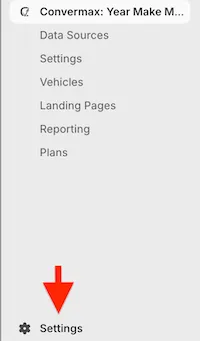
Go to Settings: Admin → Settings at the bottom of the page
-
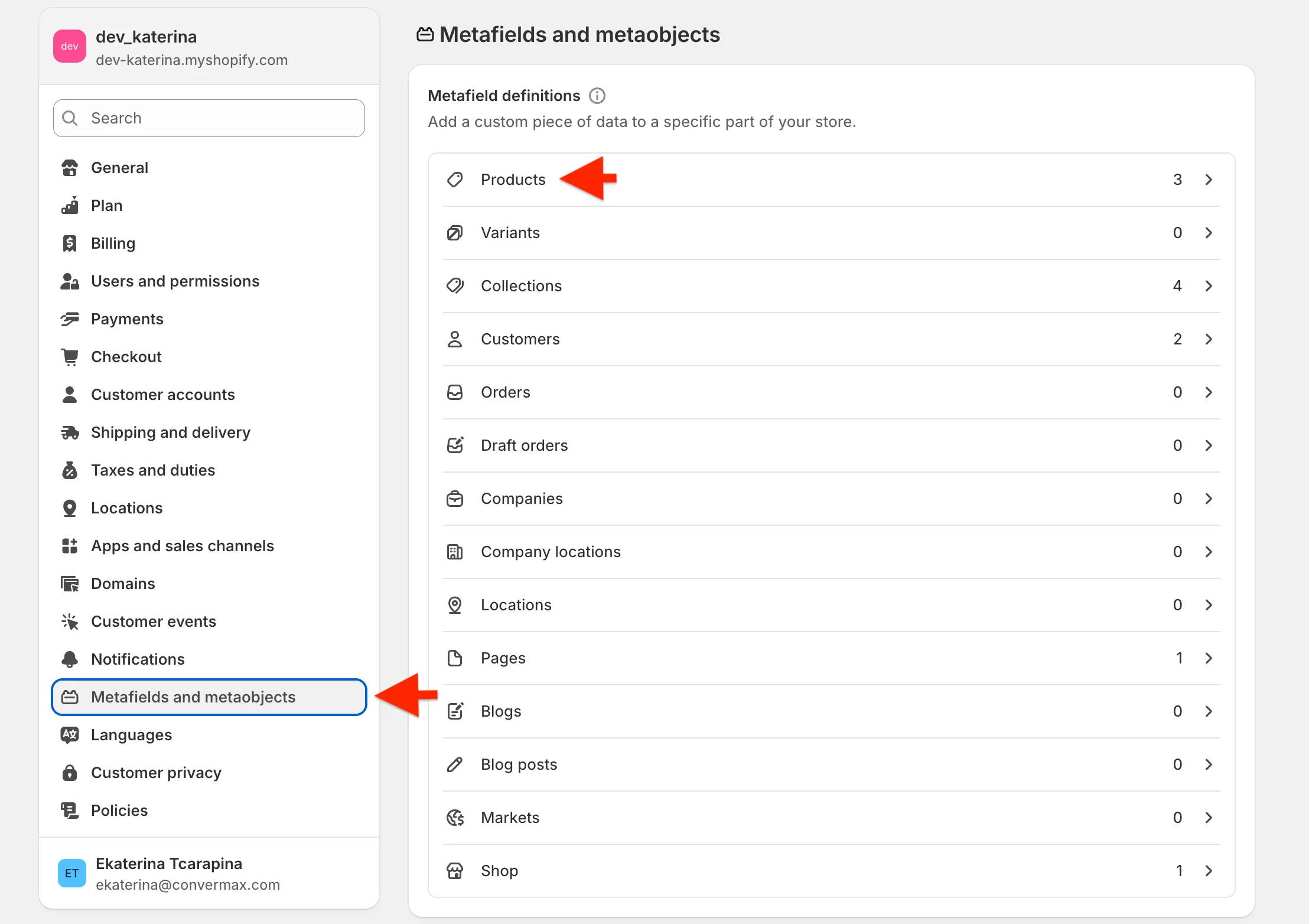
Navigate to Metafields and metaobjects → Products
-
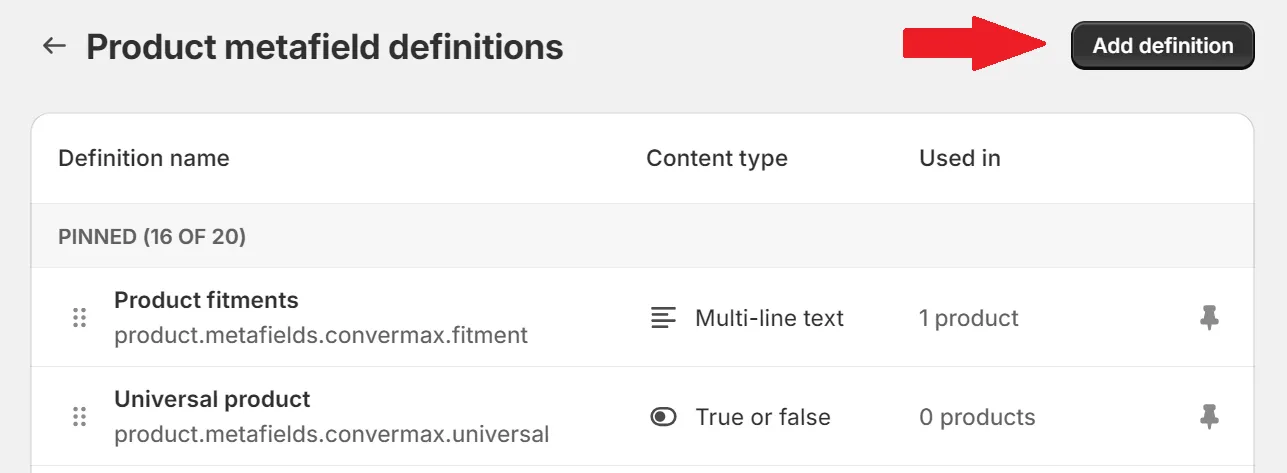
Click on Add Definition
-
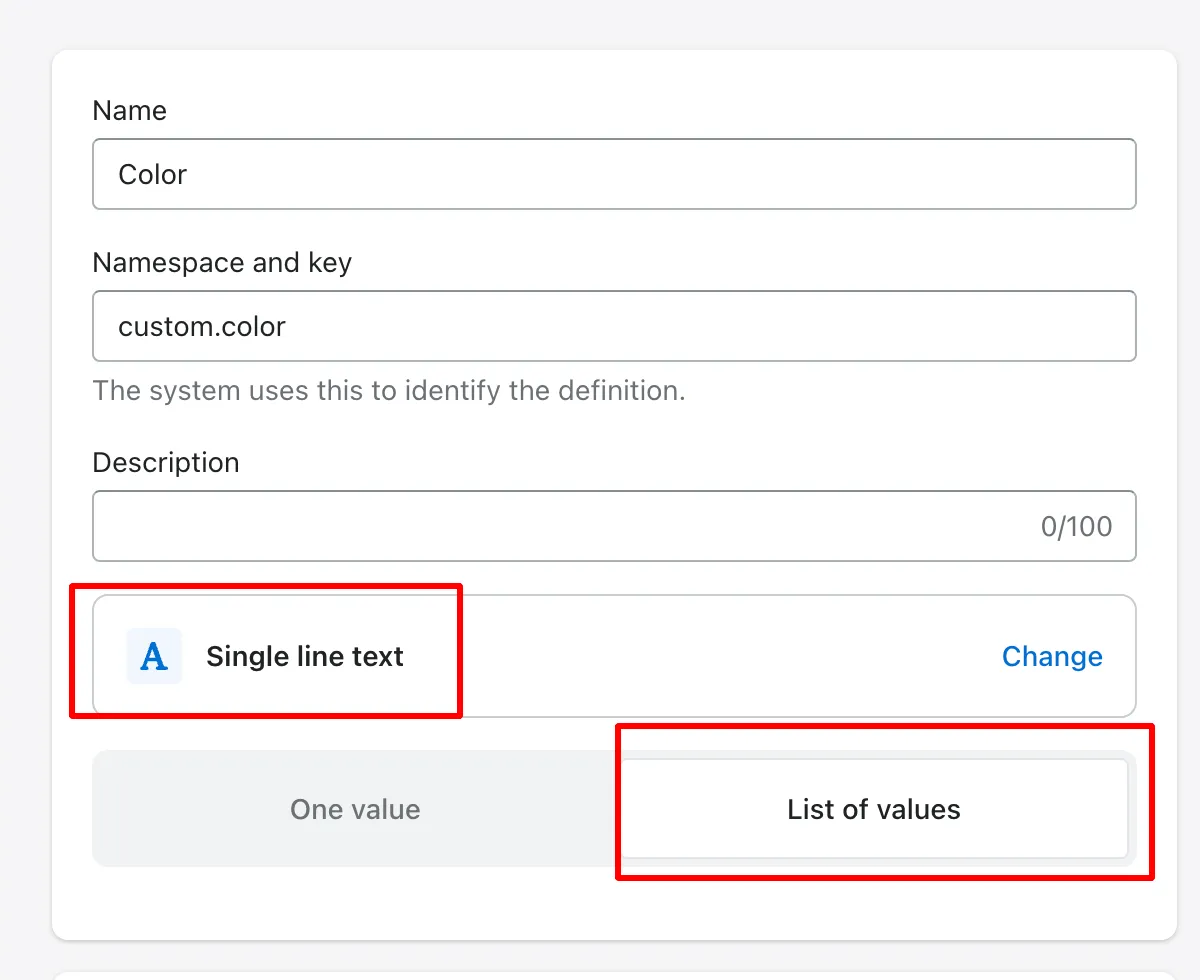
Enter the needed filter name into the Name field, then press “Select Content Type” → Text → Single line text → List of values
-
Press Save. Then go to the needed product page, scroll to the Metafields, select the created Metafield, and enter the needed filter value into the value field:

-
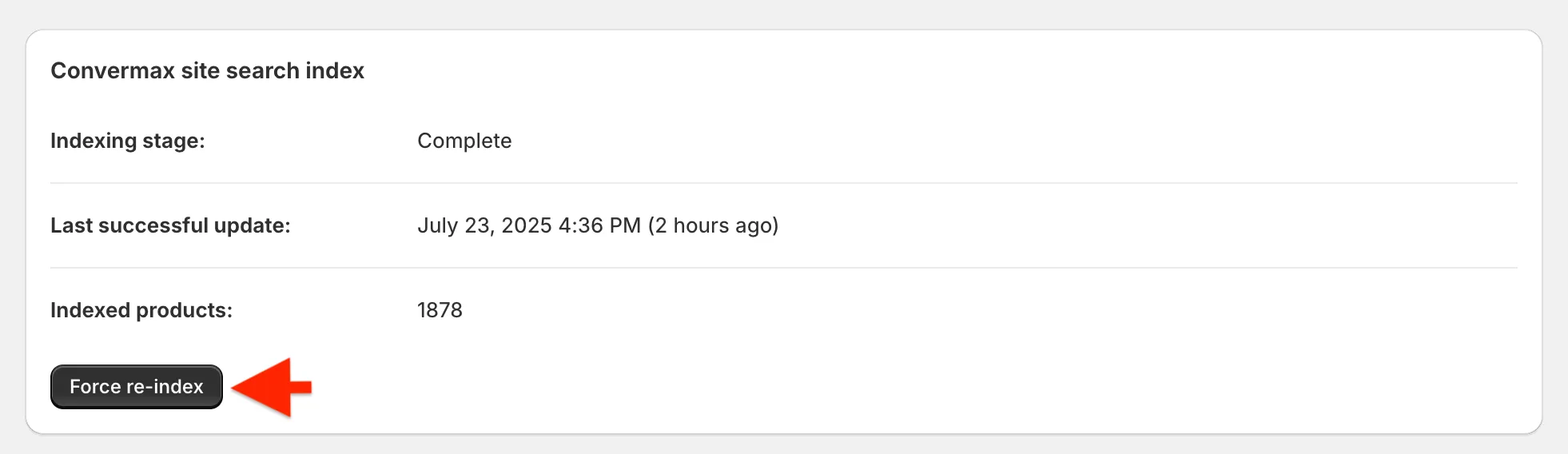
After that, go to our app home page and start re-index
-
When it’s done, you’ll be able to find your newly created field on the Filters page of our app. Go there, press Add another filter and find the recently added Metafield (it will be listed as
namespace_nameinstead ofnamespace.name) -custom.colorin this case, select it and save changes.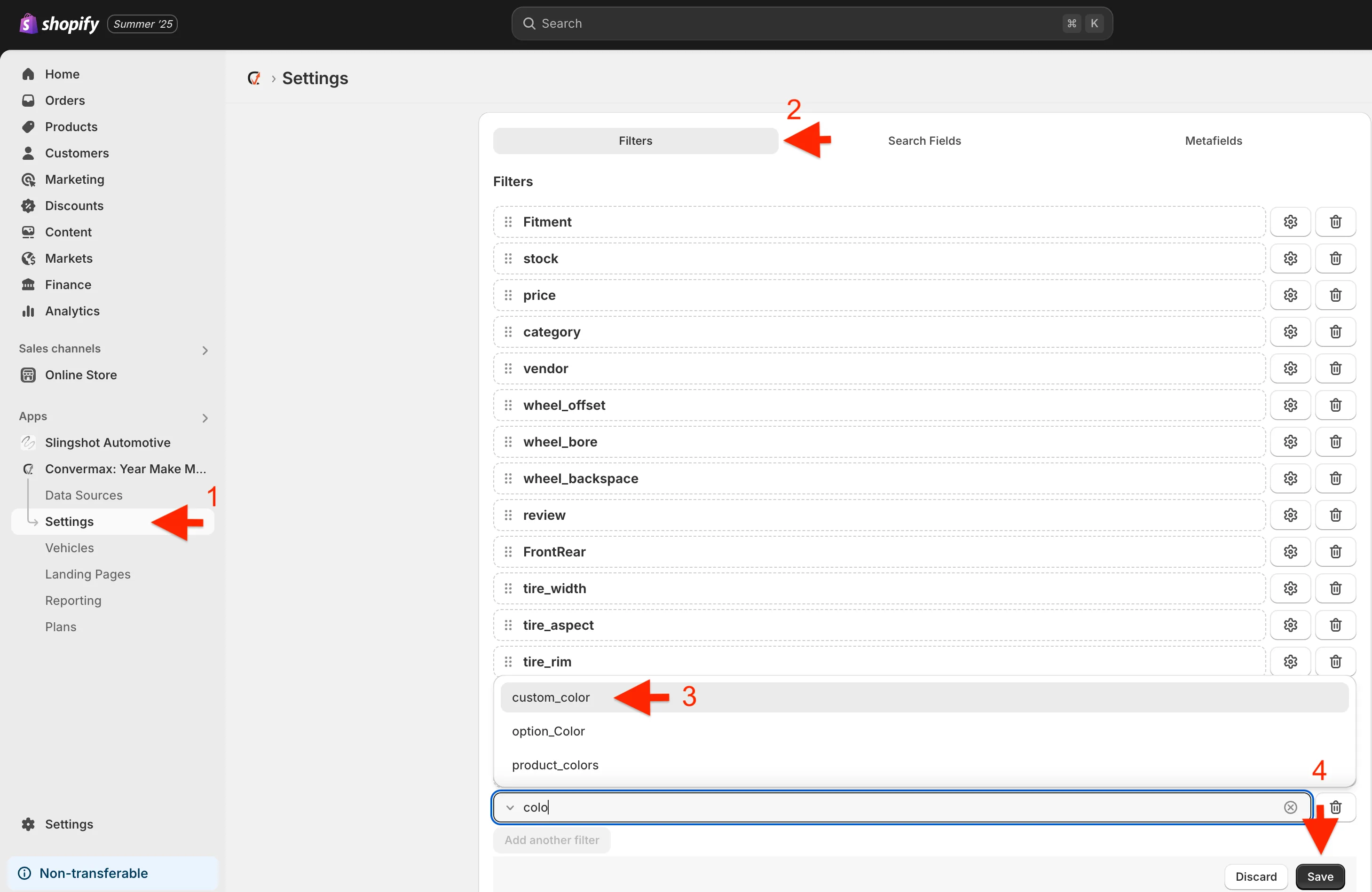
Important: For changes to take effect, you’ll need to perform re-index again.
Managing Filter Visibility for Collections
Section titled “Managing Filter Visibility for Collections”How Filter Visibility Works
Section titled “How Filter Visibility Works”Filter visibility is controlled by defining a general rule in the app settings, which can then be overridden locally using metafields on specific collections.
The visibility logic works as follows:
- The filter is visible in the app settings, no metafields used → it will be visible everywhere
- The filter is not visible in the app settings, no metafields used → it will be hidden everywhere
- The filter is visible in the app settings, but some collections have a hide metafield for that filter → it will be visible everywhere, except on those specific collections
- The filter is not visible in the app settings, but some collections have a show metafield for that filter → it will be hidden everywhere, but visible on those specific collections
Setting Global Filter Visibility
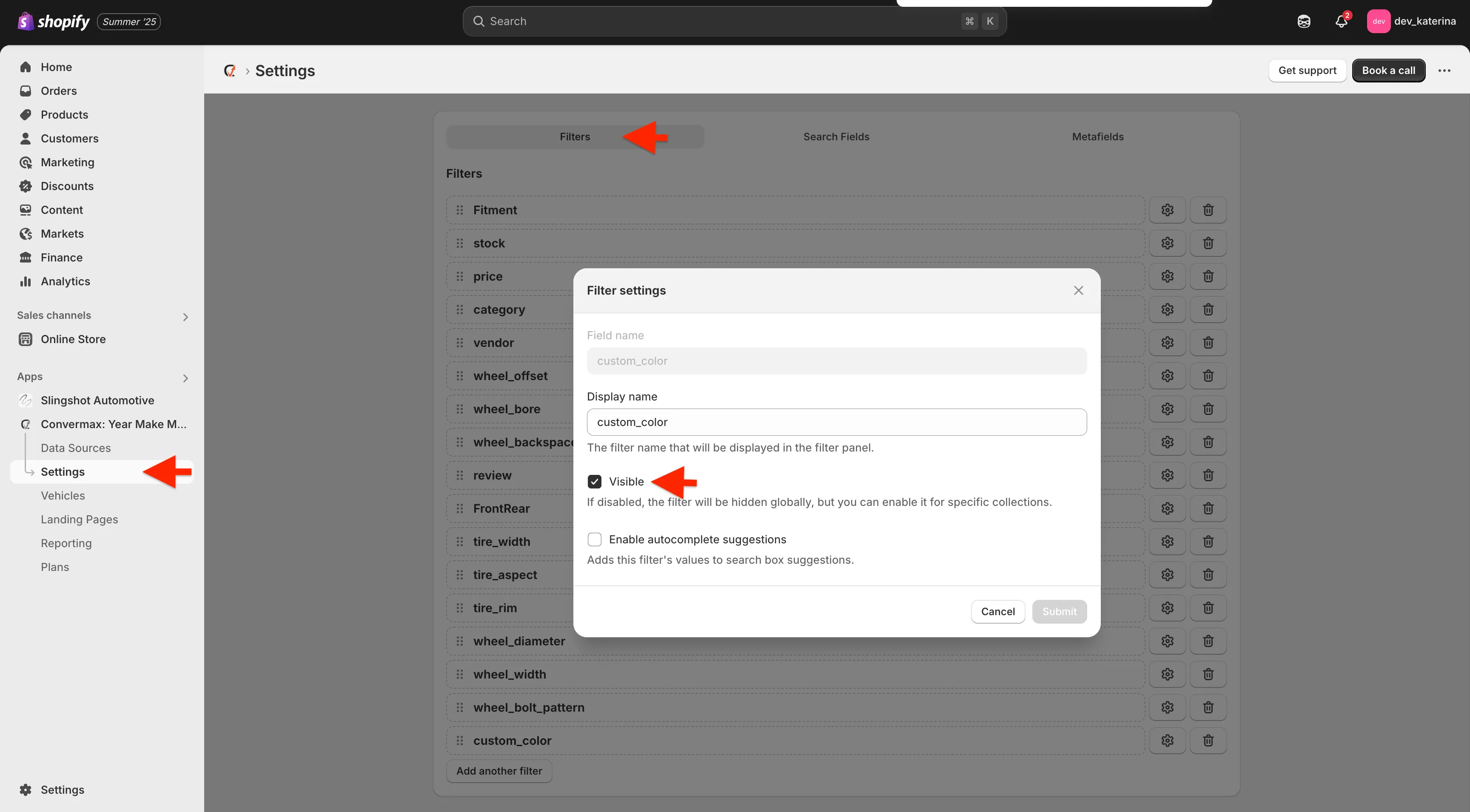
Section titled “Setting Global Filter Visibility”To set a general rule for filter visibility across your store:
Go to Admin → Convermax YMM → Settings → Filters tab → Filter settings (gear icon)
Creating Metafields via Convermax App
Section titled “Creating Metafields via Convermax App”For detailed instructions on adding metafields and their descriptions, see: List of Standard Metafields and Tags
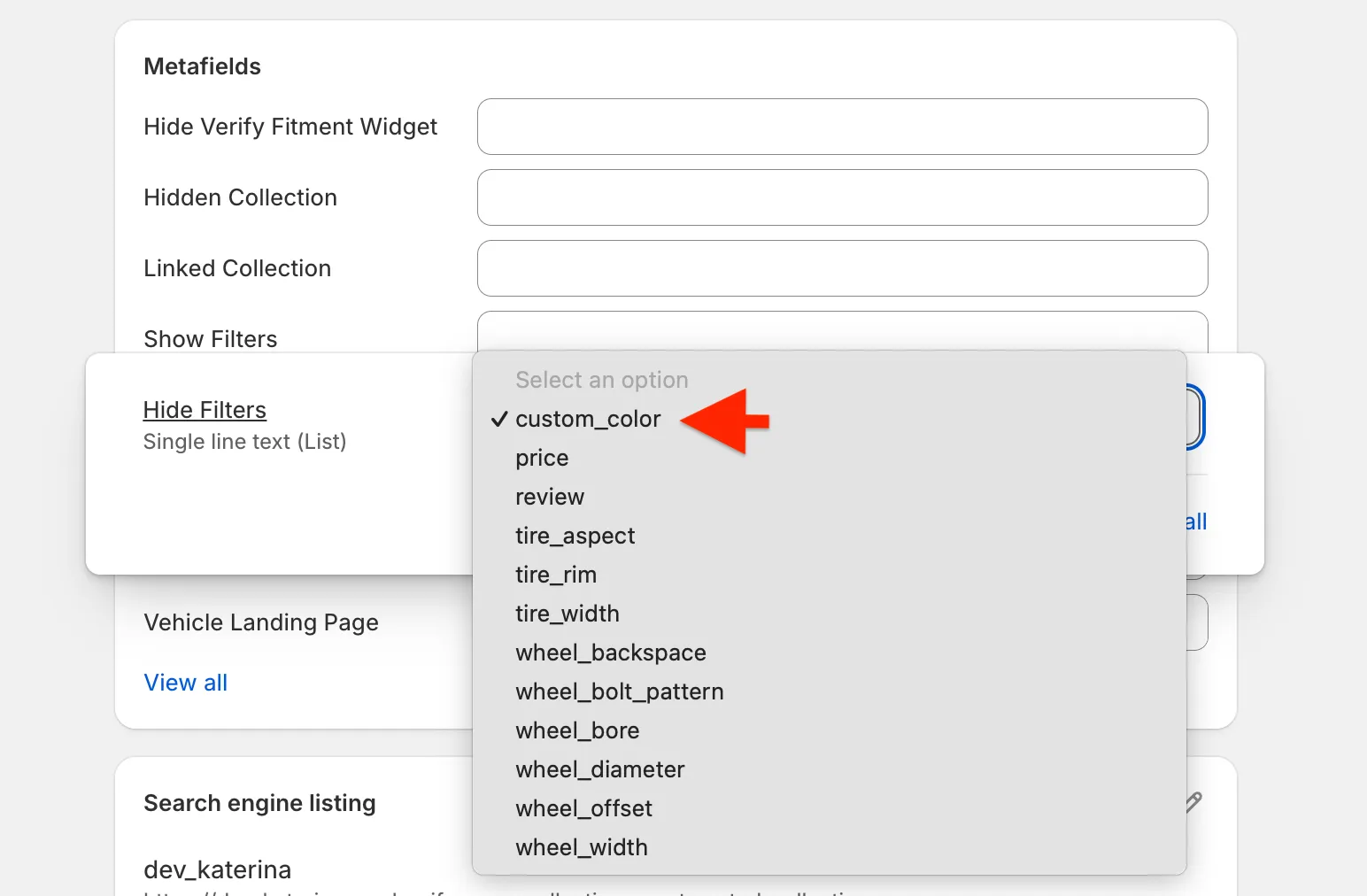
Hide Filters - Use this metafield if you want to hide filters that are globally visible in the store from specific collections. For example, you can disable extra YMM fields (like BedLength, BodyType, etc.) from a collection, while they remain visible in the rest of the store.
Show Filters - Use this metafield if you want to show certain filters on specific collections only.
Setting Filter Visibility for Specific Collections
Section titled “Setting Filter Visibility for Specific Collections”To override the general rule for a specific collection:
- Go to Admin → Products → Collections
- Choose a collection
- Scroll down to the Metafields section
- In the Show Filters and Hide Filters metafields, select the filters you want to display or hide for this collection