

Connect to AI Assistants
Convermax exposes an MCP (Model Context Protocol) server so AI assistants can securely search your store’s catalog and vehicle-fitment data on your behalf. Once connected, an assistant like Claude or ChatGPT can answer product and fitment questions using live data from your store — no manual copy-paste required.
This page walks you through connecting your Convermax MCP server to Claude (custom connectors) and ChatGPT (custom apps/connectors).
Before you begin
Section titled “Before you begin”You’ll need:
- An active Convermax store.
- Your MCP server URL, in the form
https://{your-store}.myconvermax.com/mcp. See Find your MCP server URL below for where to copy it. - A Claude or ChatGPT account on a plan that supports custom connectors. Availability and exact steps vary by plan, and some of these features are still in beta — see Learn more for the official, up-to-date requirements.
Find your MCP server URL
Section titled “Find your MCP server URL”Open the AI Tools page. It’s available in three places, and all three show the same thing:
- The Shopify app
- The BigCommerce app
- The Convermax dashboard
On that page, look under the sign-in section — labeled “Sign in with your account” in the dashboard, or “OAuth (sign-in)” in the Shopify and BigCommerce apps. The server address is the field labeled “Endpoint URL”:
https://{your-store}.myconvermax.com/mcpThis URL is built from your store ID and carries no password or token — there’s nothing secret to protect here. You’ll sign in separately when you connect.
Connect to Claude
Section titled “Connect to Claude”In Claude, add Convermax as a custom connector:
- Open
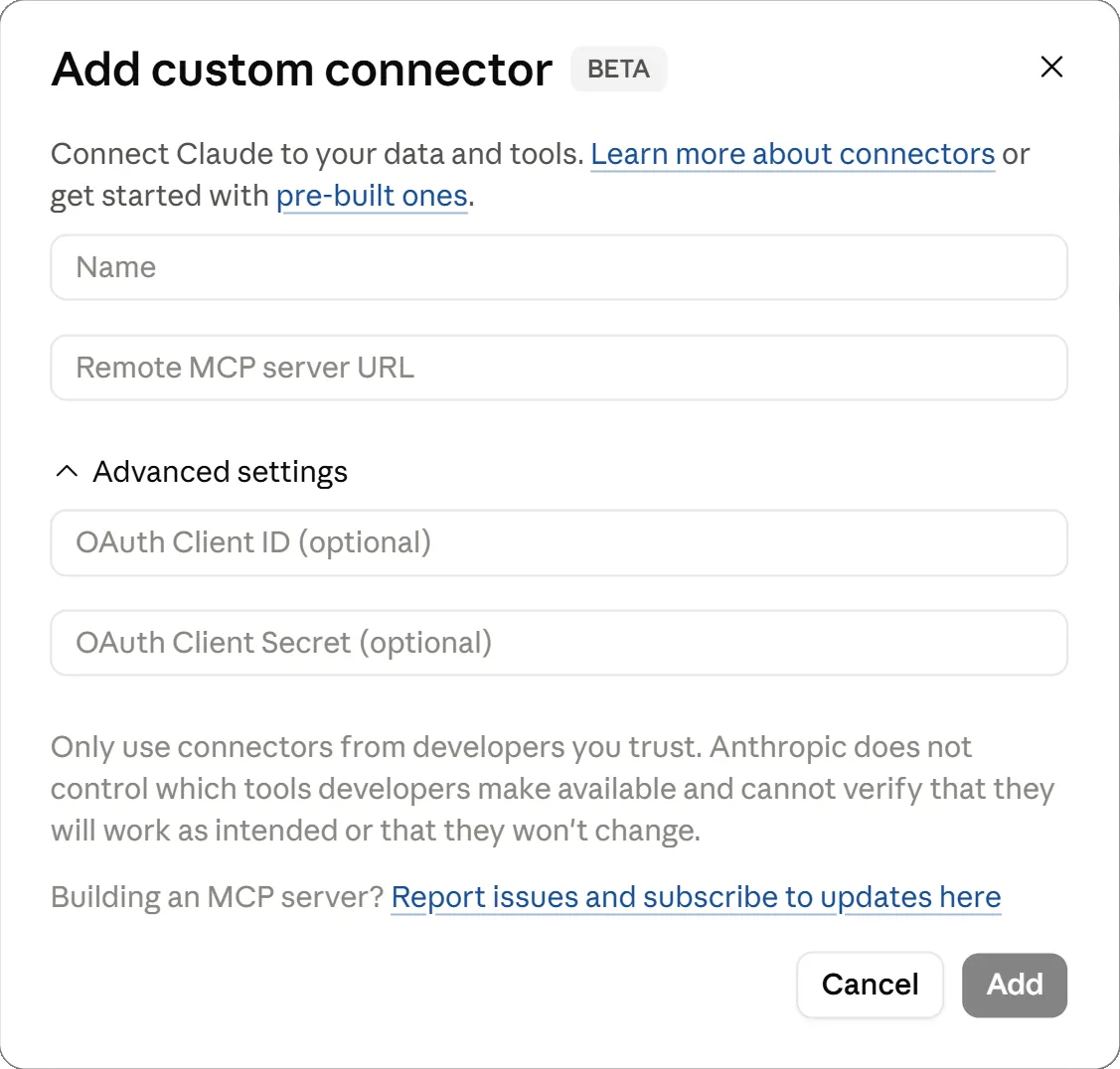
Customize > Connectorsand choose Add custom connector. (On Team and Enterprise plans, only an Owner can add a connector — underOrganization settings > Connectors— and members then click Connect on it afterward.) - In the Remote MCP server URL field, paste your Convermax endpoint:
https://{your-store}.myconvermax.com/mcp. - Leave the optional OAuth Client ID and OAuth Client Secret fields (under Advanced settings) blank — the Convermax server registers itself automatically, so you don’t need to fill these in.
- Click Add.
- Claude opens a browser sign-in. Sign in with your Convermax account and approve access. Convermax’s tools then become available in Claude.
Connect to ChatGPT
Section titled “Connect to ChatGPT”In ChatGPT, add Convermax as a custom app / connector:
- Go to Apps & Connectors (shown as
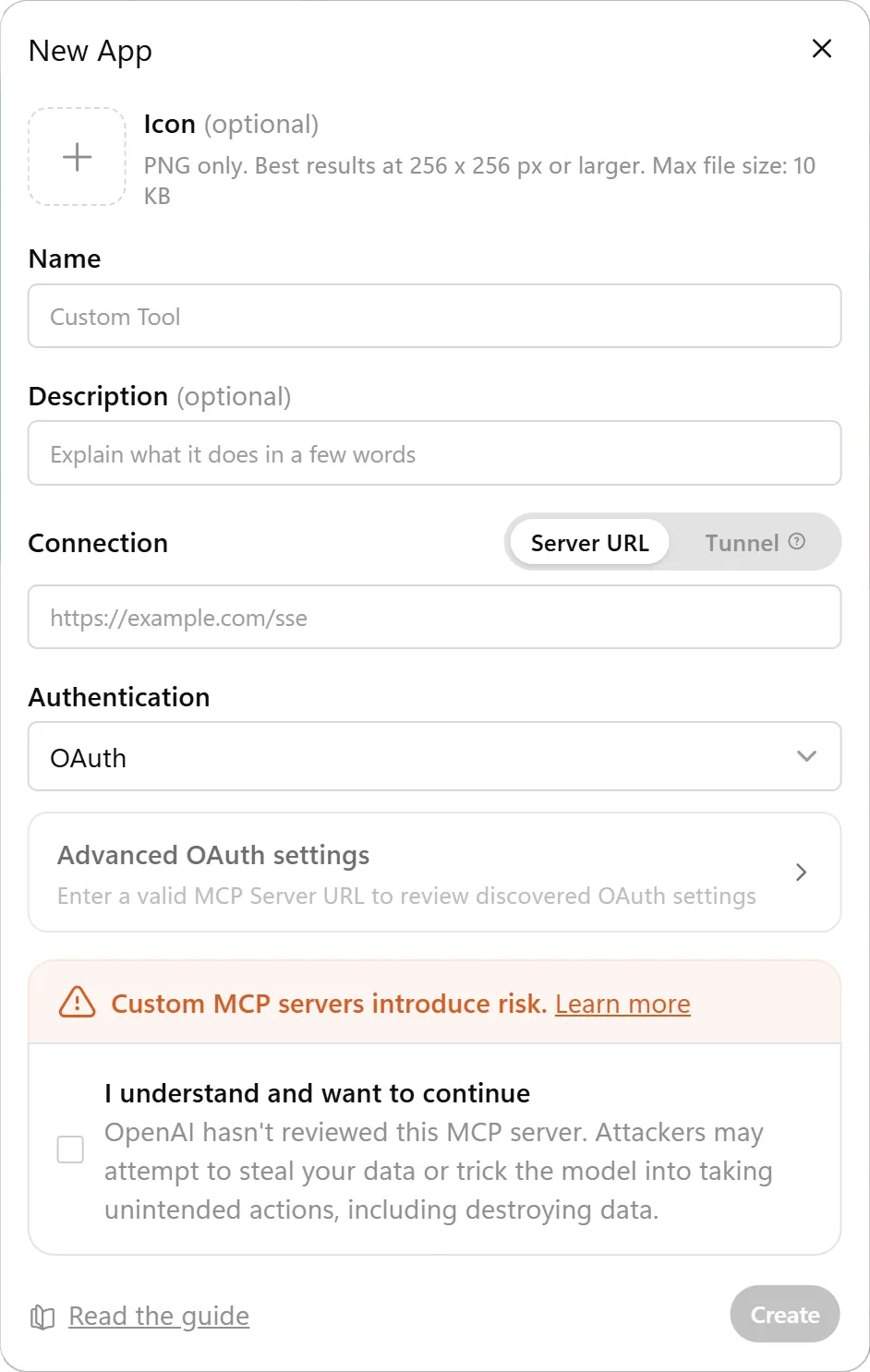
Settings > Connectorsin some versions). If you don’t see a way to add one, open Advanced settings and enable developer mode — your organization’s admin can allow or block this. - Click Create (or New App) to open the new-app form. (The Create option appears only once developer mode is on and if your organization permits it.)
- Give it a Name (for example, “Convermax”).
- Paste your endpoint into the Connector / Server URL field:
https://{your-store}.myconvermax.com/mcp. - Set Authentication to OAuth. ChatGPT discovers the OAuth settings automatically from your MCP URL, so you don’t need to enter anything under Advanced OAuth settings.
- Acknowledge the risk notice, then click Create.
- Complete the OAuth sign-in, signing in with your Convermax account and approving access. ChatGPT then lists the tools your server provides, ready to use in conversations.
Managing connected apps
Section titled “Managing connected apps”The AI Tools page (in the Shopify app, BigCommerce app, or Convermax dashboard) has an “Authorized applications” section that lists every app connected via OAuth sign-in. Each entry shows the application’s name, the email of the account that signed in, and when it was authorized and last used.
To remove an app’s access, click Revoke next to it and confirm. After revoking, that application must sign in and be approved again before it can reconnect.
Coding agents
Section titled “Coding agents”For coding agents and headless tools — such as Claude Code or Codex — use a static API key instead of the sign-in flow. On the AI Tools page, generate an API key (under “Connect with an API key” in the dashboard, or “API key” in the apps) and paste it into the client’s MCP config as a bearer credential:
{ "mcpServers": { "convermax": { "url": "https://{your-store}.myconvermax.com/mcp", "headers": { "Authorization": "Bearer {your-api-key}" } } }}You can regenerate or delete the key from the same page at any time. Deleting it permanently revokes access for any client using it.
Learn more
Section titled “Learn more”The exact steps, plan requirements, and beta status for these assistants change over time. For the latest official details, see: