

Connect an assistant
Convermax exposes an MCP (Model Context Protocol) server so AI assistants can securely work with your store’s catalog and vehicle-fitment data on your behalf. Once connected, an assistant like Claude or ChatGPT can answer product and fitment questions using live data from your store — no manual copy-paste required — and, when you ask it to, make changes such as editing a product’s fitment data or your store’s search synonyms.
This page walks you through connecting your Convermax MCP server to Claude (custom connectors) and ChatGPT (custom MCP servers).
Before you begin
Section titled “Before you begin”You’ll need:
- An active Convermax store.
- The MCP server URL,
https://myconvermax.com/mcp. It is the same for every store; see Find your MCP server URL below. - A Claude or ChatGPT account on a plan that supports custom connectors. Availability and exact steps vary by plan, and some of these features are still in beta — see Learn more for the official, up-to-date requirements.
Find your MCP server URL
Section titled “Find your MCP server URL”The server address is in two places:
- Convermax dashboard: the Integrations page, filtered to AI Tools. Open the MCP Server card and look under Sign in with your account.
- Shopify and BigCommerce apps: the Integrations page, filtered to AI Tools. Open the MCP Server card and look under OAuth (sign-in).
The address is in the field labeled Endpoint URL:
https://myconvermax.com/mcpThe URL carries no password or token — there’s nothing secret to protect here. You’ll sign in separately when you connect, and the sign-in page shows which store the assistant will work with. If your account has access to several stores, you choose there whether to allow all of them (including ones added later) or only some, and whether the assistant may make changes. The assistant then names the store it’s acting on before any change.
Connect to Claude
Section titled “Connect to Claude”- Open Customize > Connectors, click + Add, then Add custom connector. On Team and Enterprise plans, an Owner adds it under Organization settings > Connectors, and members then click Connect on it.
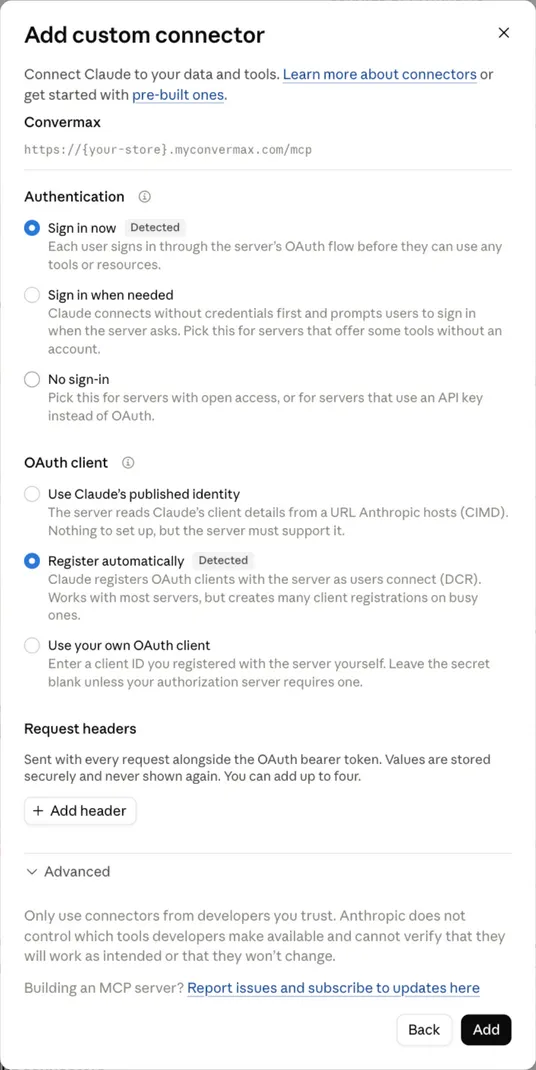
- Enter a name, such as “Convermax”, and paste your endpoint URL. Click Continue.
- Keep the detected settings: Sign in now and Register automatically. Convermax doesn’t support Use Claude’s published identity.
- Click Add, sign in with your Convermax account, and click Allow.
Connect to ChatGPT
Section titled “Connect to ChatGPT”- Open Plugins, click Add, then Add custom MCP server. Your workspace admin may need to allow custom MCP servers.
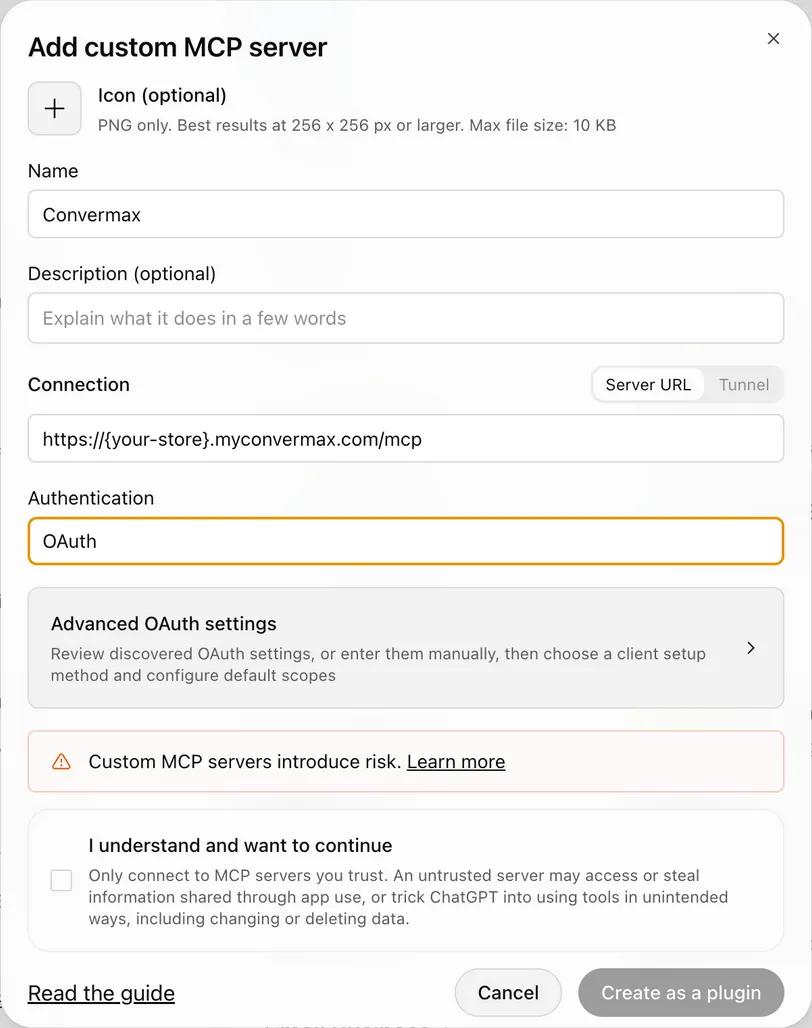
- Enter a name, such as “Convermax”, and paste your endpoint URL under Connection.
- Keep Authentication set to OAuth. ChatGPT finds the sign-in settings itself.
- Check I understand and want to continue, then click Create as a plugin.
- Sign in with your Convermax account and click Allow.
Managing connected apps
Section titled “Managing connected apps”The page that shows your endpoint URL also has an Authorized applications section. It lists every app connected through sign-in, with the account email, when it was authorized, and when it was last used.
To remove an app’s access, click Revoke and confirm. A connection that covers several stores is listed on every store it has been used on, and revoking it on one store disconnects it everywhere. In the Shopify app, click Save to apply it. The app must sign in and be approved again to reconnect. Access it already has can keep working for up to 15 minutes. An app unused for 30 days also has to sign in again.
Coding agents
Section titled “Coding agents”For coding agents and headless tools — such as Claude Code or Codex — use a static API key instead of the sign-in flow. On the same page, generate an API key (under Connect with an API key in the dashboard, or API key in the apps) and paste it into the client’s MCP config as a bearer credential:
{ "mcpServers": { "convermax": { "url": "https://myconvermax.com/mcp", "headers": { "Authorization": "Bearer {your-api-key}" } } }}The store has one API key, shared by everyone who uses it, and it also authorizes the export API. Treat it like a password. Regenerating it replaces the old key immediately, and deleting it cuts off every client using it. In the Shopify app, click Save to apply either change.
Learn more
Section titled “Learn more”The exact steps, plan requirements, and beta status for these assistants change over time. For the latest official details, see: