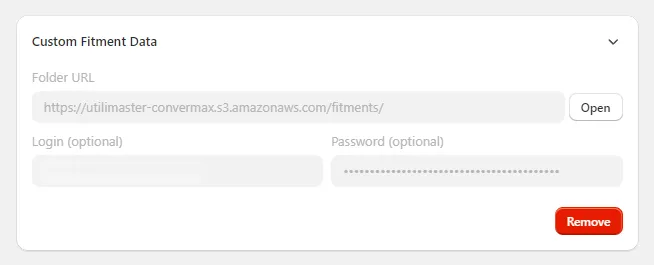
About Custom Fitment Data Sources
Fitments stored on the product
Section titled “Fitments stored on the product”You can store fitment data directly on your products in two ways:
- Product tags — fitments in the
fits_Years`Make`Model`Submodeltag format,fits_Universalfor universal products, andconvermax-skipto hide a product from search. See Add Custom Fitment Data with Tags. - Product metafields — fitments entered as a YAML list in the
convermax.fitmentmetafield, which can also mark a productUniversalorNon-Vehicle Product. See Add Custom Fitment Data with Metafields.
Fitments stored separately
Section titled “Fitments stored separately”Formats
Section titled “Formats”Spreadsheets
Section titled “Spreadsheets”The custom fitment data file must have the following format:
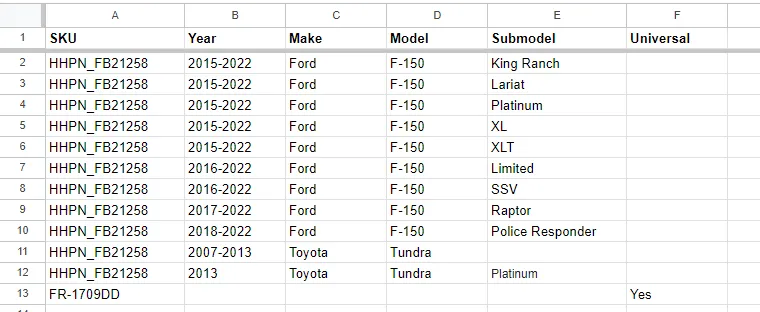
To mark a product as universal, insert “Yes” in the “Universal” column.
File Format Supported: Google Spreadsheets, CSV/Excel files, or ZIP archives containing CSV/Excel files.
This is an example of a custom fitment file: https://docs.google.com/spreadsheets/d/1gc4zYP8P2GISsDhAwtzudWljYwPLesWDxBX-oALhQQ0
We support loading fitments from ACES files exported manually. It can be a folder with ACES .xml or zip with ACES .xml inside. A part applies to a product whose SKU is {BrandID}_{PartNumber}, or whose SKU is the part number and whose vendor is the part’s AAIA brand. Review shows the parts that match no product. If you have another format, contact us for ACES fitment parsing tuning.
Storages
Section titled “Storages”On the Custom Fitment Data card, under Where are your fitment files?, choose one of these options:
- In my Google Drive or on my server: enter the Folder link (see the sources below) and click Check access to list the files Convermax finds there. Then click Review files to review them on the import page, which opens in a new tab. The folder is connected only when you click Connect folder there.
- I don’t have a place for them: choose where Convermax keeps the files, Shopify Files (Content > Files in your Shopify admin, up to 20 MB per file) or Google Drive, and save. Then click Upload a file on the card to add files on the import page, which reviews each file before saving it.
You can connect folders with custom fitment data files from the following sources:
Google Drive
Section titled “Google Drive”You can connect a Google Drive folder containing Google Spreadsheets, CSV/Excel files, or ZIP archives containing CSV/Excel files using the Convermax Shopify app.
- Open the Convermax app from your Shopify admin panel.
- Go to the Integrations page.
- Click the Custom Fitment Data card and choose In my Google Drive or on my server.
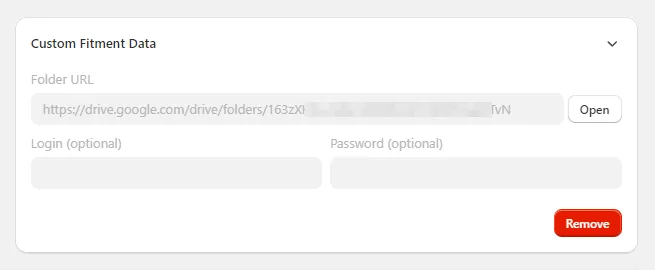
- Enter the Google Drive folder URL.
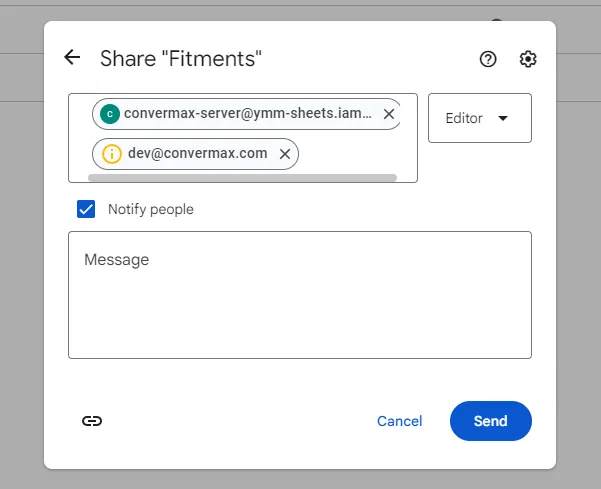
To share your folder with Convermax, do the following:
- Select your folder and click “Share”.
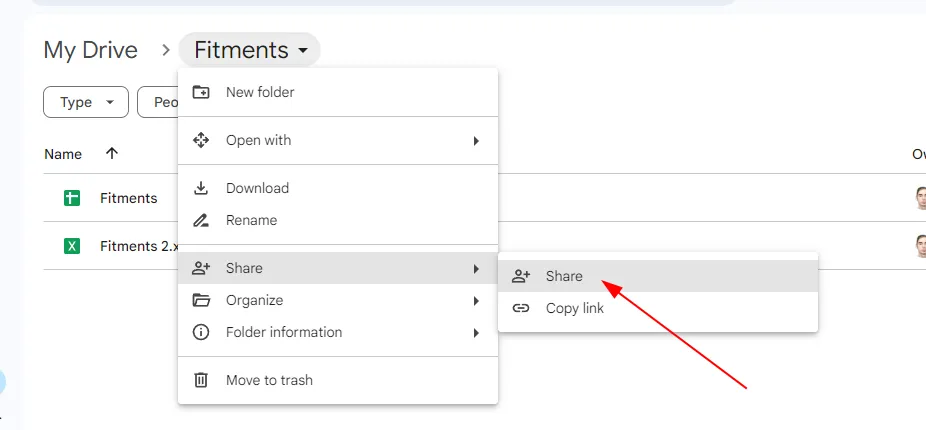
- Share the folder with these accounts:
FTP/SFTP Servers
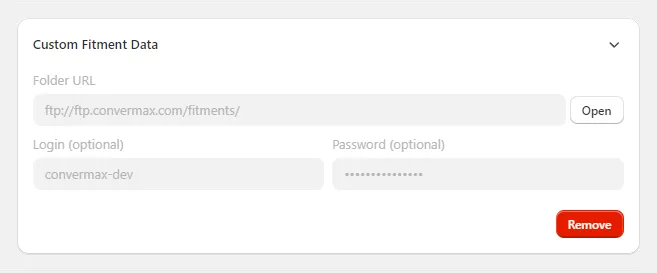
Section titled “FTP/SFTP Servers”You can connect an FTP/SFTP folder containing CSV/Excel files, or ZIP archives using the Convermax Shopify app.
- Open the Convermax app from your Shopify admin panel.
- Go to the Integrations page.
- Click the Custom Fitment Data card and choose In my Google Drive or on my server.
- Enter the folder URL including the scheme (
ftp://orsftp://respectively). - Enter the login/password required to access your server.
Amazon S3
Section titled “Amazon S3”You can connect an Amazon S3 folder containing CSV/Excel files, or ZIP archives using the Convermax Shopify app.
- Open the Convermax app from your Shopify admin panel.
- Go to the Integrations page.
- Click the Custom Fitment Data card and choose In my Google Drive or on my server.
- Enter the folder URL using the following format:
s3://<bucket-name>/<folder>/
<bucket name>- S3 bucket<folder>- optional folder
- Enter the access key ID as the login and the secret access key as the password.