

Add Collection Header
The Collection Header block shows the collection’s image, title, and description. It works right away and needs no indexing.
- Go to your theme editor: Admin → Sales channels → Online Store → Themes → (on the desired theme) Customize
- Select the Collections template in the dropdown at the top and pick Default collection (or another collection template)
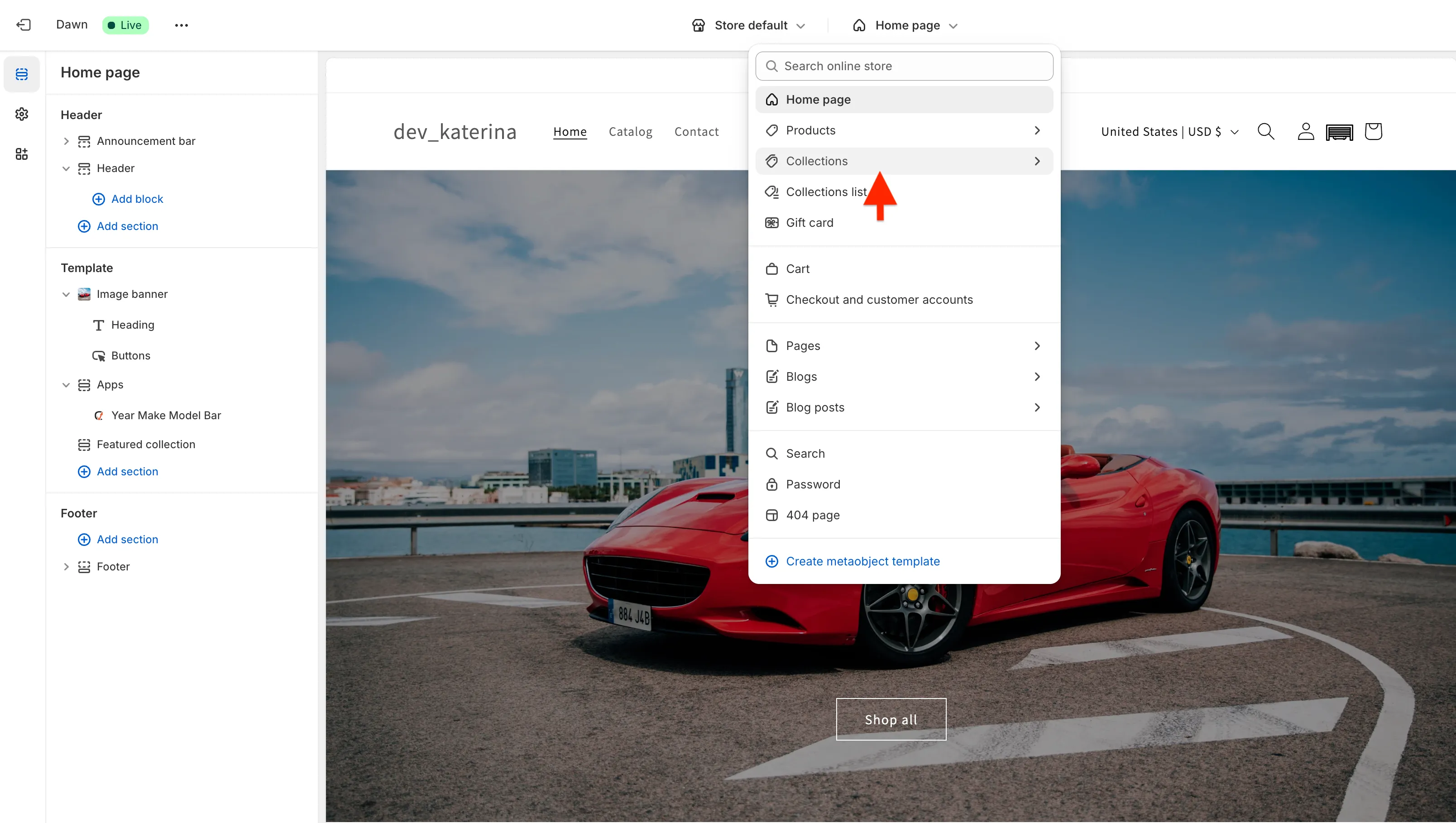
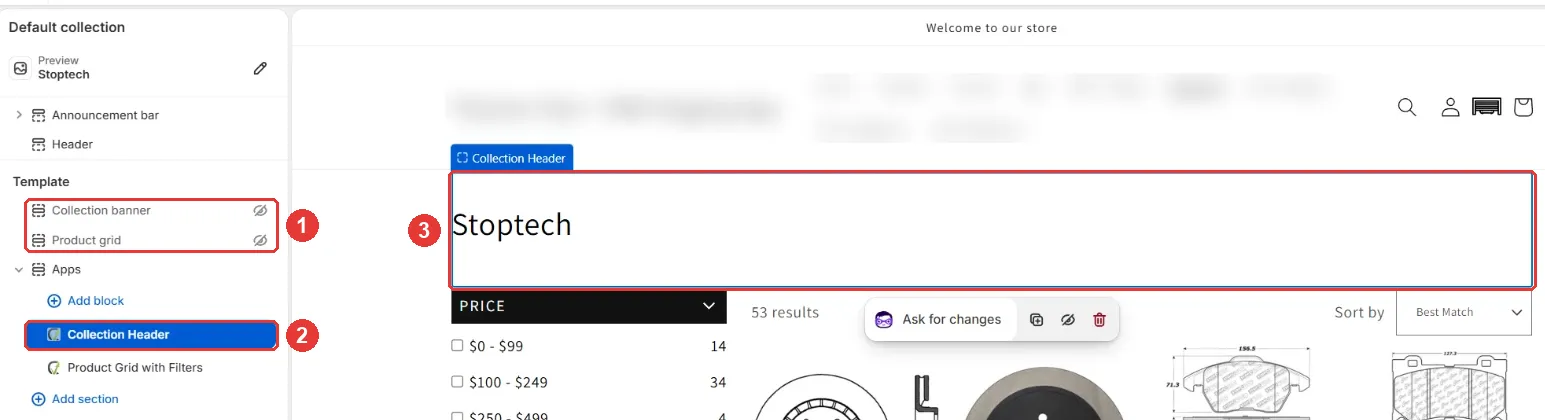
- If the theme has its own collection banner, hide it by clicking the eye icon next to the section
- Click Add section, open the Apps tab, and select Collection Header
- Place it above Product Grid with Filters
- Click Save. The theme’s own sections are hidden (1), the block is in the template list (2), and the preview shows the collection header (3)
Settings
Section titled “Settings”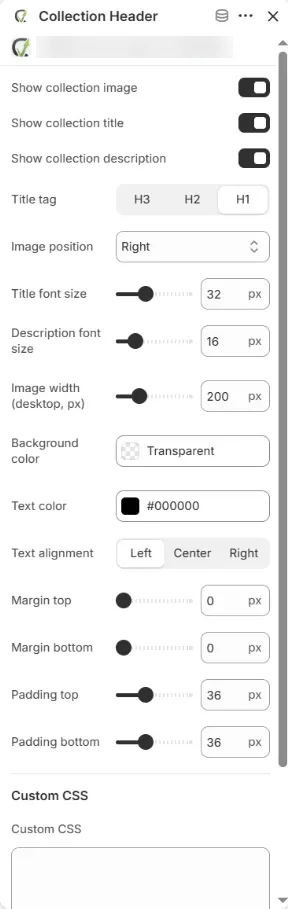
| Setting | Description |
|---|---|
| Show collection image / title / description | Turn each part on or off |
| Title tag | H1 (default), H2, or H3 |
| Image position | Left, Right (default), or Background (the image fills the block behind the text) |
| Title font size, Description font size | Text sizes in px |
| Image width (desktop, px) | Image width on desktop; it scales down on smaller screens |
| Background color, Text color, Text alignment | Block colors and alignment |
| Margin top / bottom, Padding top / bottom | Spacing around and inside the block |
| Custom CSS | Extra CSS; use .cm-collection-header-{block-id} as the root selector |
The image, title, and description come from the collection in Shopify admin (Products → Collections).